Three real background edits in the HeyDreaming photo editor, with original photos, exact prompts, repeat runs, measured times and the product details to check before you publish.
By HeyDreaming
We generated these examples in the public HeyDreaming editor on 2026-10-24, using the free Local model. Each input and prompt was run twice. These are stock-photo demonstrations, not customer results or endorsements. No manual compositing or product retouching was applied after generation.
To change a product photo background with AI, upload your photo, choose Single edit → HeyDreaming Local, describe the new background, and generate. Then compare the edited image with the original before downloading it. A background request can also change the product, so the comparison is part of the job.
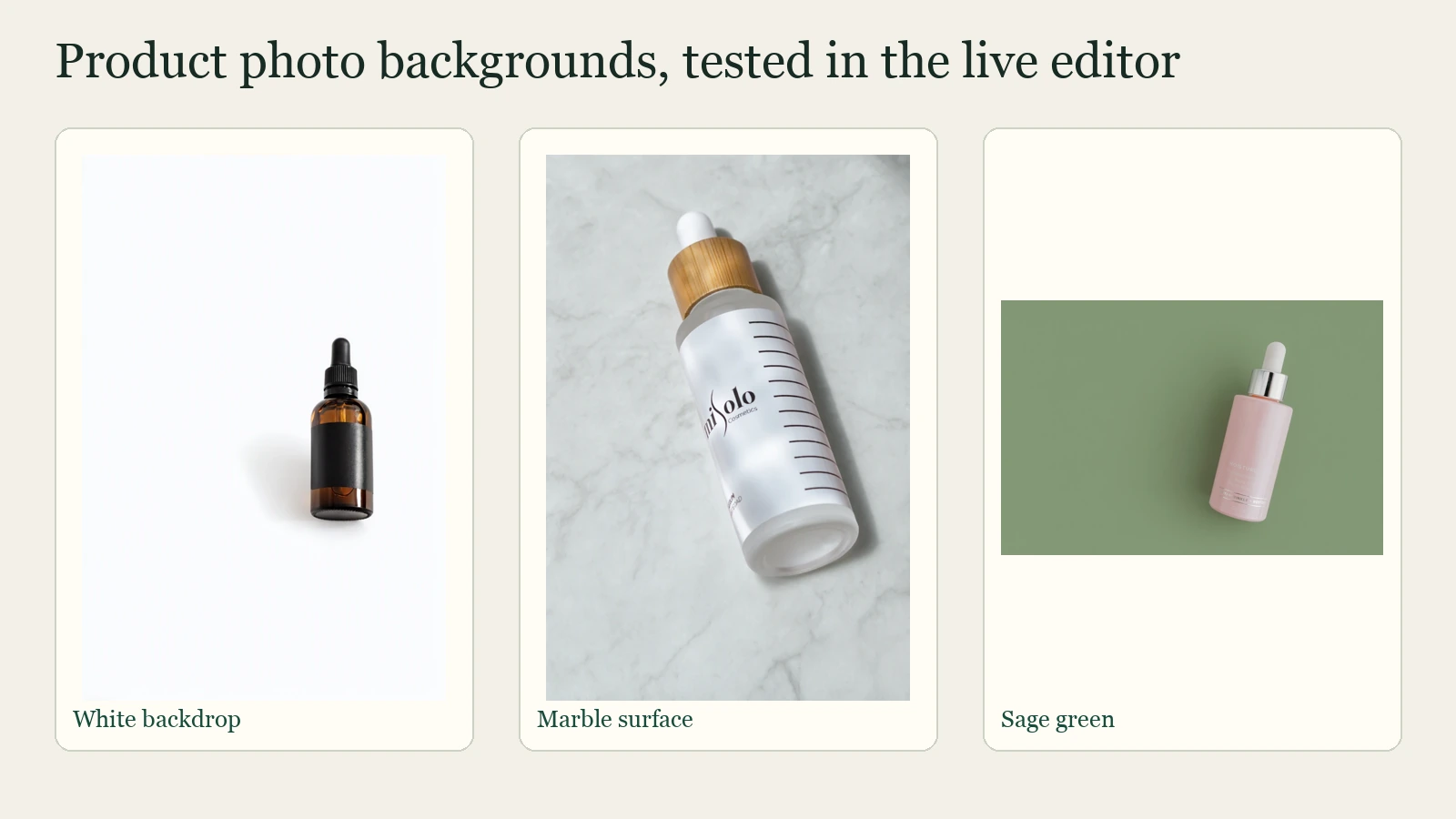
Below are three real examples: a near-white studio background, a marble surface, and a sage-green background. We used the same settings for all three and repeated each prompt on the same source photo. You can use the prompts as starting points in the AI photo editor.
These examples demonstrate background changes. They do not establish unchanged bottle shapes, labels, or pixels. In our results, product details and shadows also changed. If your listing needs an exact label or silhouette, reject a result that changes either.
Select HeyDreaming Local. The free plan includes 20 Local edits a day; sign in to generate. Nano Banana 2 is a separate paid option and was not used here.
Upload a JPEG, PNG or WEBP file, up to 20 MB. Start with a clear, well-lit image. Keep a copy of your camera original.
Leave Aspect ratio: Original and Resolution: 1K to match these tests. Original refers to the aspect-ratio choice; it does not promise the camera file's original pixel dimensions.
Paste a prompt below, or describe your own background. Ask for the surface, color, lighting and any objects to remove.
Press Generate. Watch the queue/progress, compare the result, and use Download when it is ready.
For a repeat, upload the same original photo again, rather than using Edit again on the generated output. Editing an output starts a different experiment.
What we measured
All six runs used the public homepage editor, the free Local model, Single edit, Original ratio and 1K. Each run used one daily photo-edit slot and 0 general credits. We downloaded the results with the editor's Download button.
Times below are the observed end-to-end Generate-action-to-result times, rounded to the nearest second. They include upload, queue time, generation and the interface's polling delay. They are a six-run snapshot, not a speed guarantee.
Background
First run
Repeat
Near-white
103 s
99 s
Marble look
102 s
102 s
Sage green
99 s
100 s
The repeats reproduced the requested background types, but the images were not pixel-identical. The open repeat panels below show the second outputs as well as the first. We did not select a hidden manually repaired version.
Example 1: A white background for an amber bottle
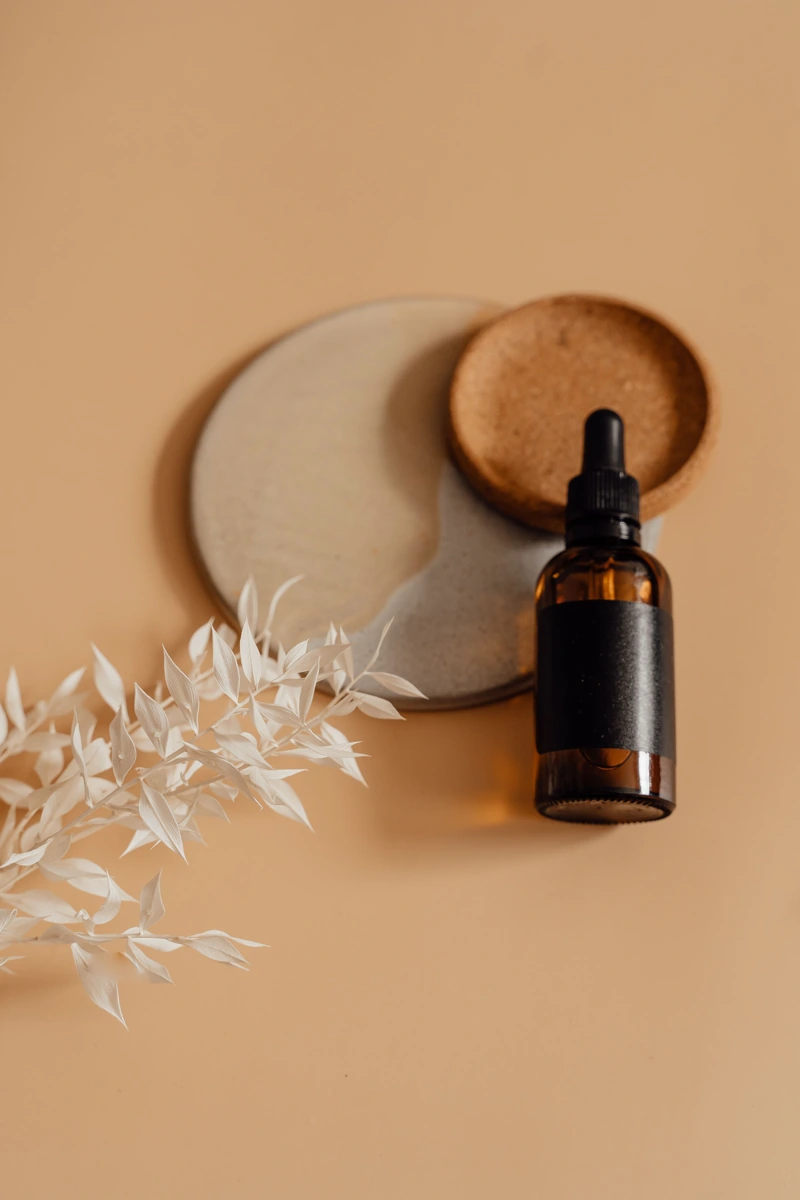
The original is an amber dropper bottle beside two plates and dried foliage. The task was to remove the surrounding props and create a near-white studio look.
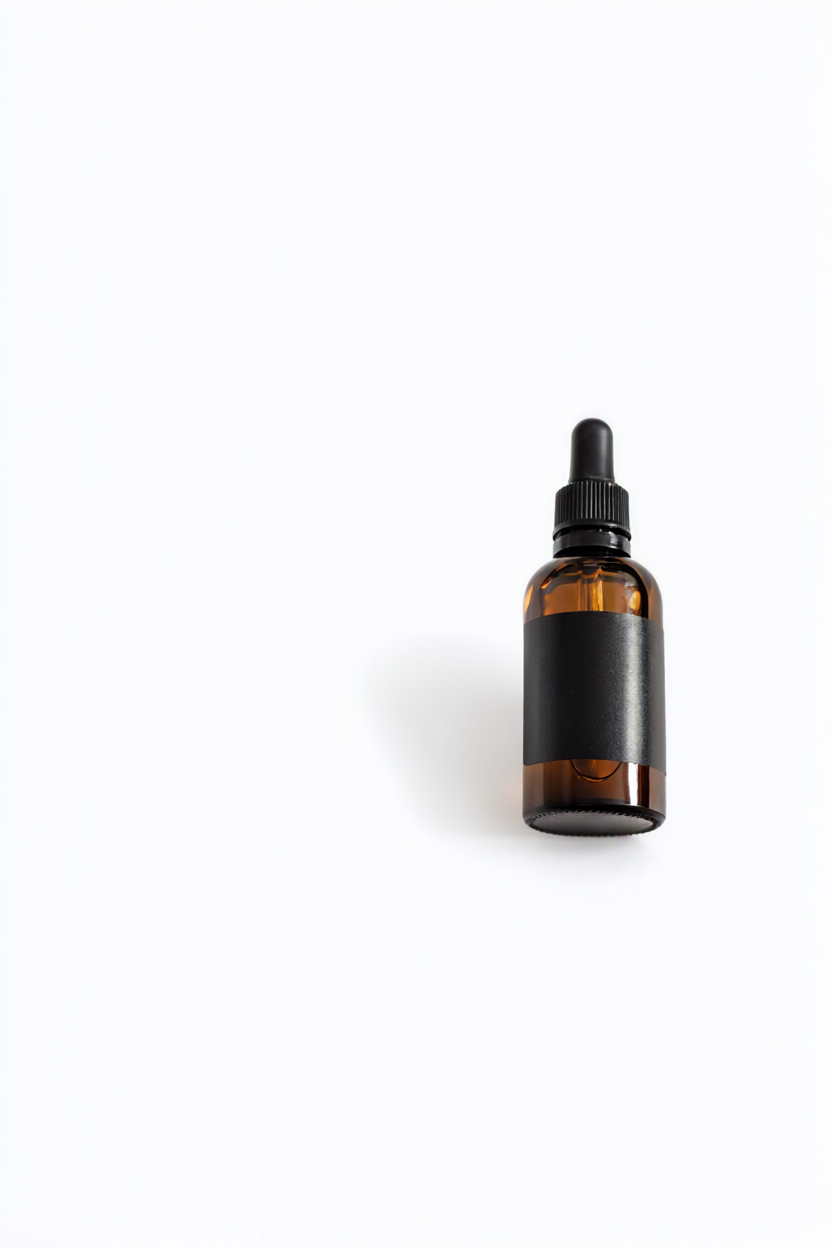
Original photo. Alesia Kozik / Pexels.First result · 103 seconds. Click for the untouched downloaded PNG.
Exact prompt:
Replace the background with a clean plain white studio background. Remove the plates and dried leaves. Keep the same single amber dropper bottle, black dropper and black label band in the same position, size and shape. Add only a subtle soft shadow. Do not add text, logos, extra products or props.
What happened: Both runs removed the plates and foliage and produced a near-white background. The bottle remained recognizable, but its pose, highlights and shadow changed. The request to keep the exact position and shape was not a pixel-preservation control.
What to check before using it: Compare the bottle shoulders, dropper and base against your source. This bottle has a blank black band, so this example does not test retention of readable label text. A generated near-white background is not a measured pure-white marketplace background.
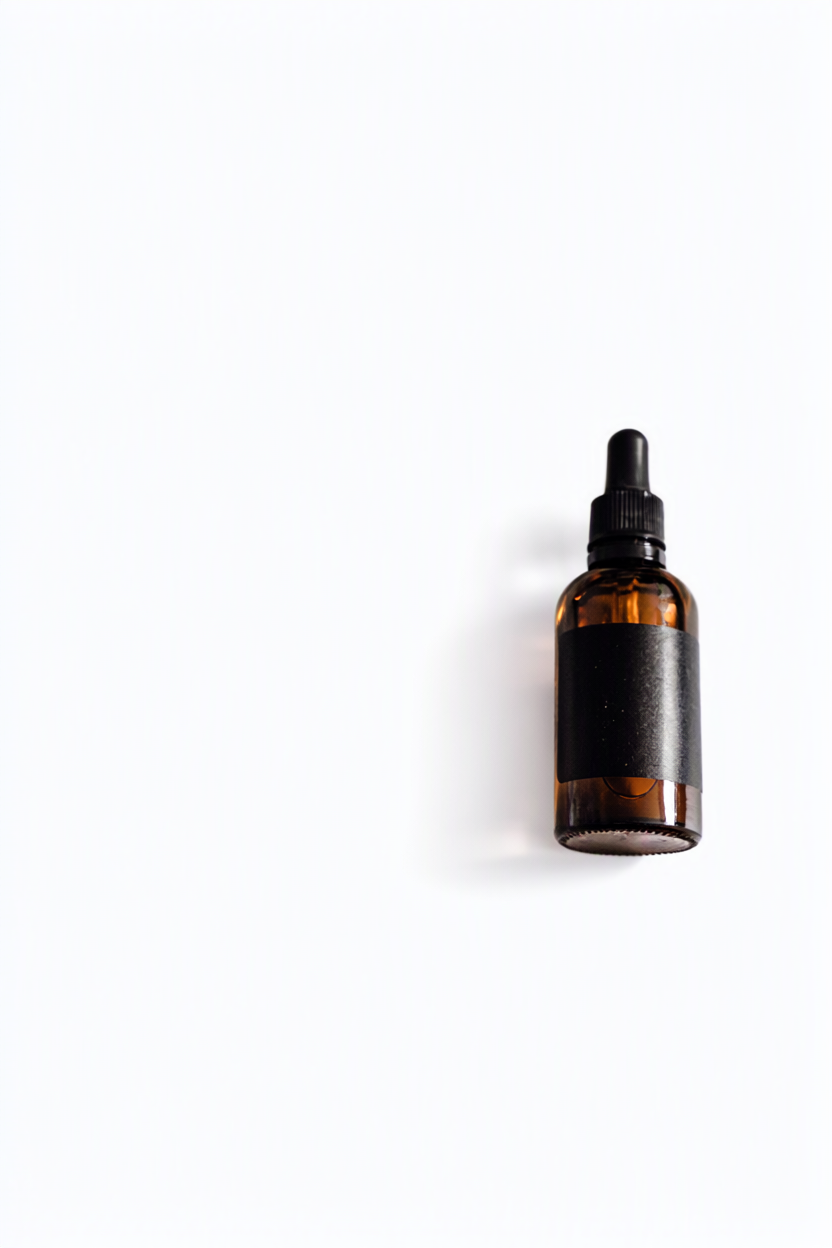
See the same-input repeat · 99 seconds
The original input, prompt, model and settings were unchanged.
The repeat also removed the props and produced a near-white backdrop. Bottle reflections, angle and shadow placement differ from the first result.
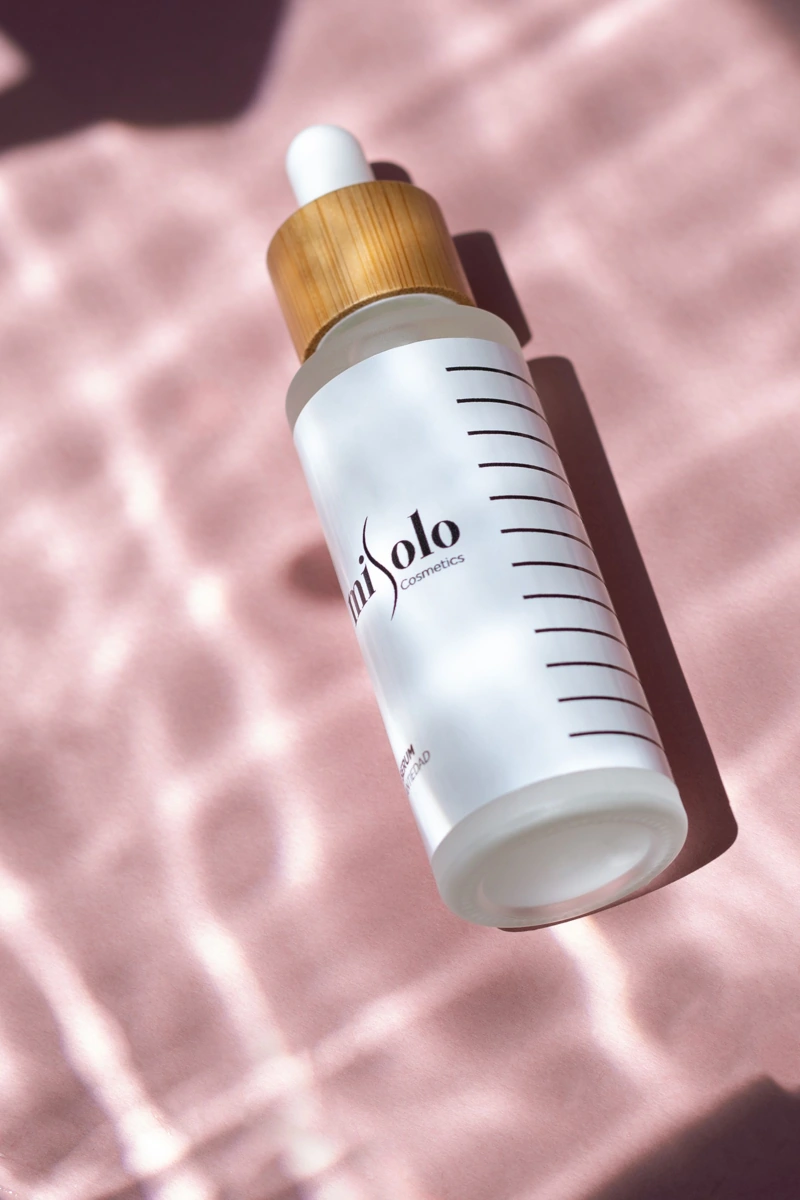
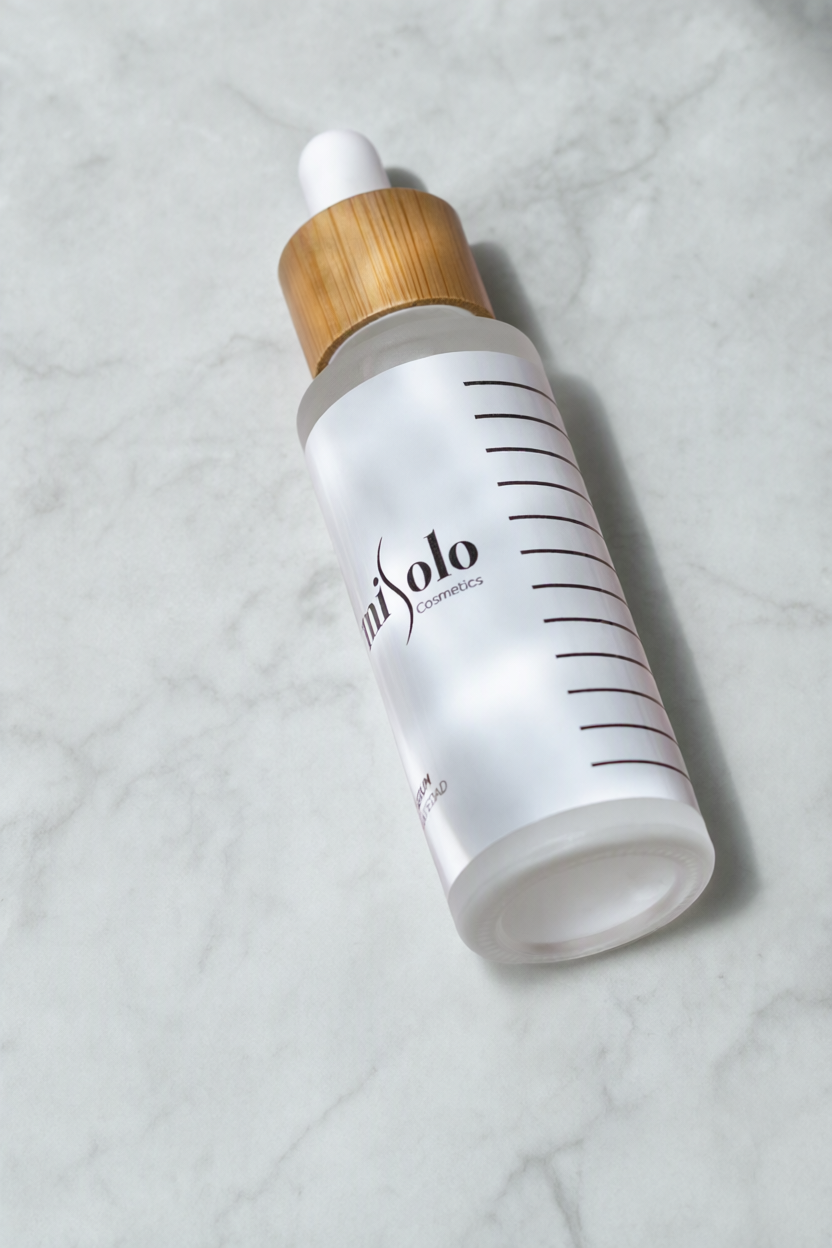
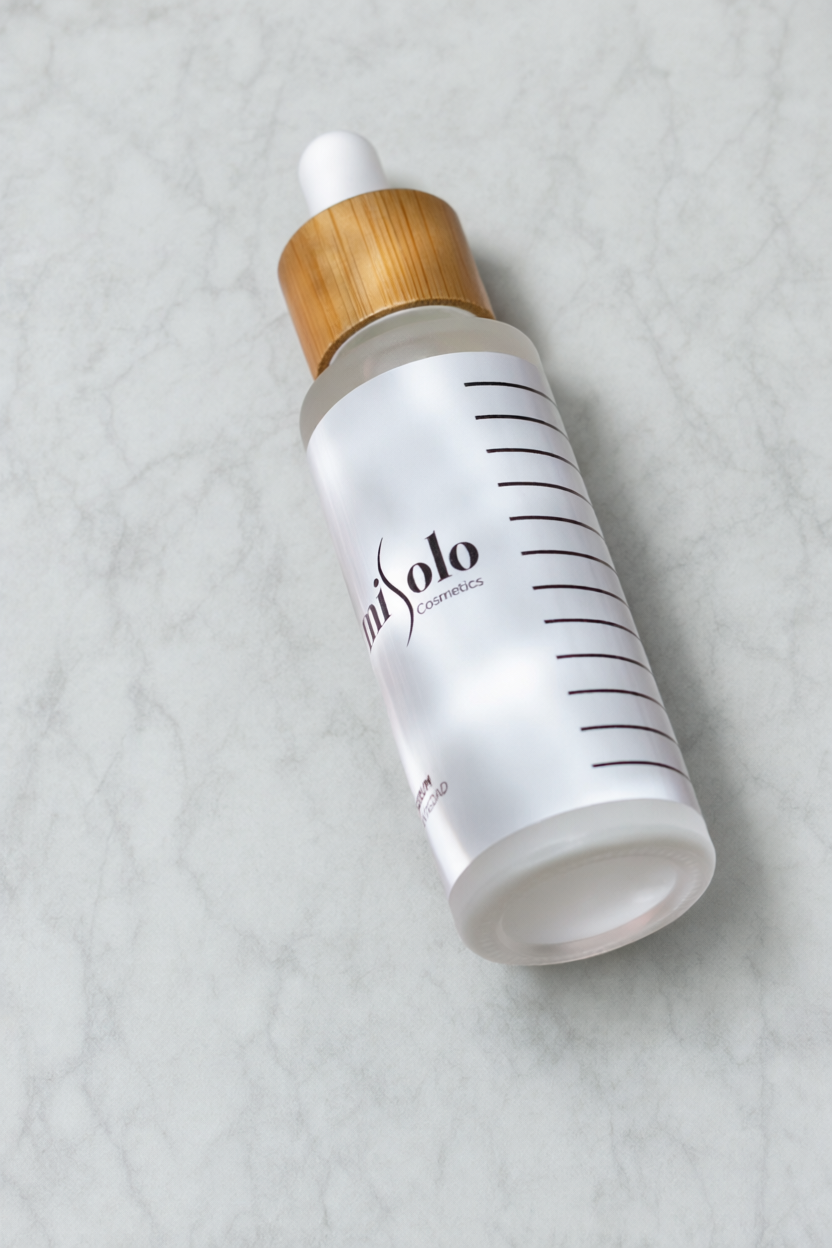
The source photo shows a white serum bottle with a bamboo cap on a pink textured background. We asked for a pale gray marble look while keeping the overhead composition.
Original photo. Misolo Cosmetic / Pexels.First result · 102 seconds. Click for the untouched downloaded PNG.
Exact prompt:
Replace the pink background with a pale gray marble surface with very subtle veins. Keep the top-down viewpoint and the same white serum bottle, bamboo cap, label, proportions and position. Use soft diffuse light and a gentle shadow. Do not add new products, props or text.
What happened: Both runs changed the pink surroundings to a pale gray, veined surface. The large wordmark remained recognizable, while the surface texture and product shadows varied. Some of the original fabric-like texture also remained in the generated marble look.
What to check before using it: Read the smaller label text and inspect the bottom of the bottle at full size. The visible main wordmark is not proof that every letter or printed detail was preserved. Accept the background only if the required product details also pass your comparison.
See the same-input repeat · 102 seconds
The original input, prompt, model and settings were unchanged.
The repeat produced the same gray marble-like background type, with changes in the veins, shadow and bottle detail. It is a second real output, not the first image reused.
20 free AI photo edits a day on HeyDreaming Local. Upload a photo, describe the background, and compare the result. Sign in to generate; no credit card needed.
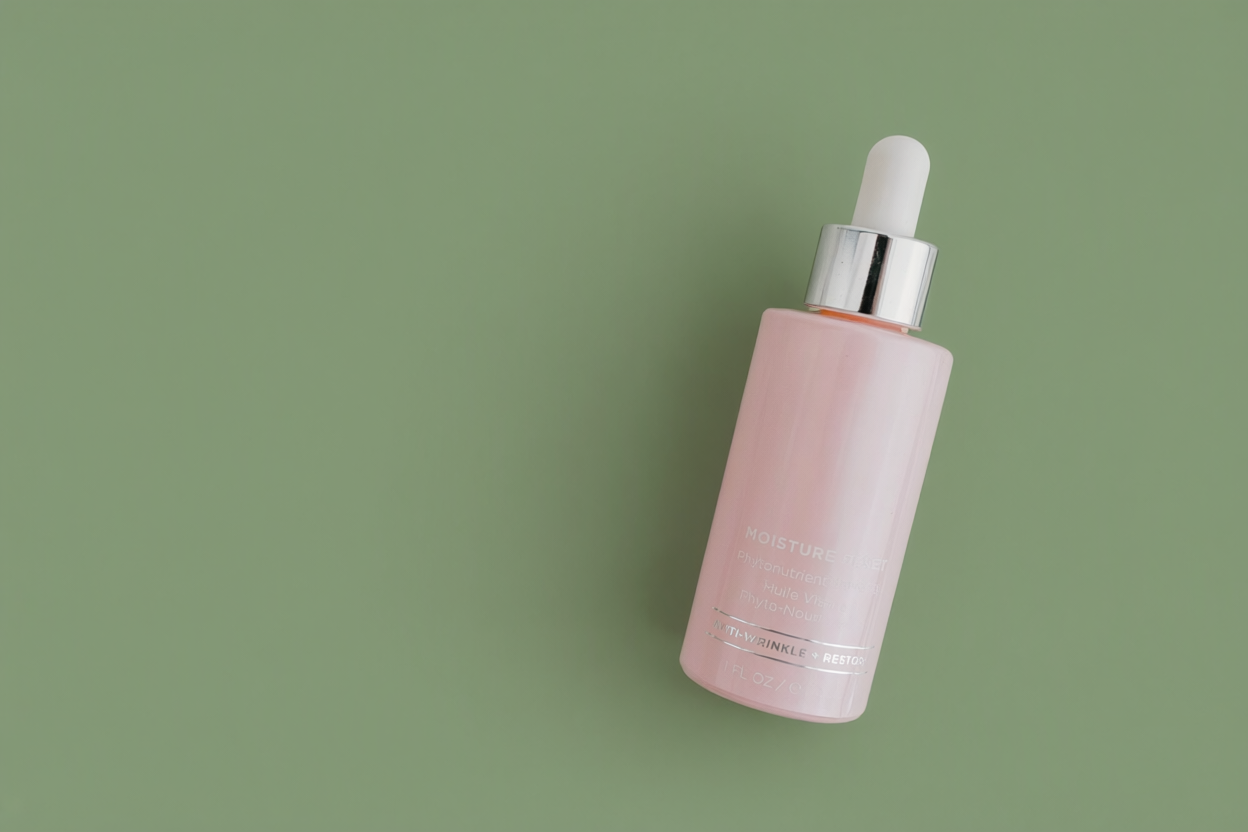
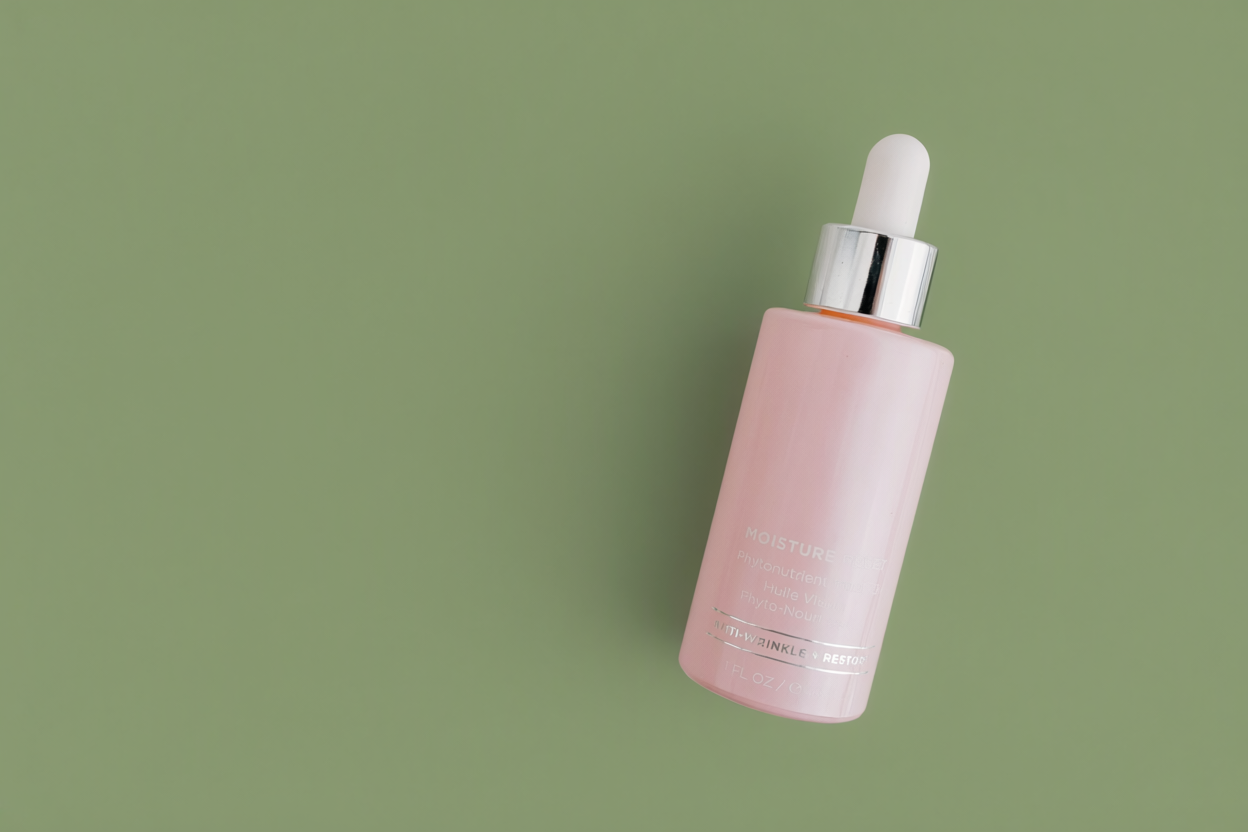
Example 3: A sage-green background for a pink bottle
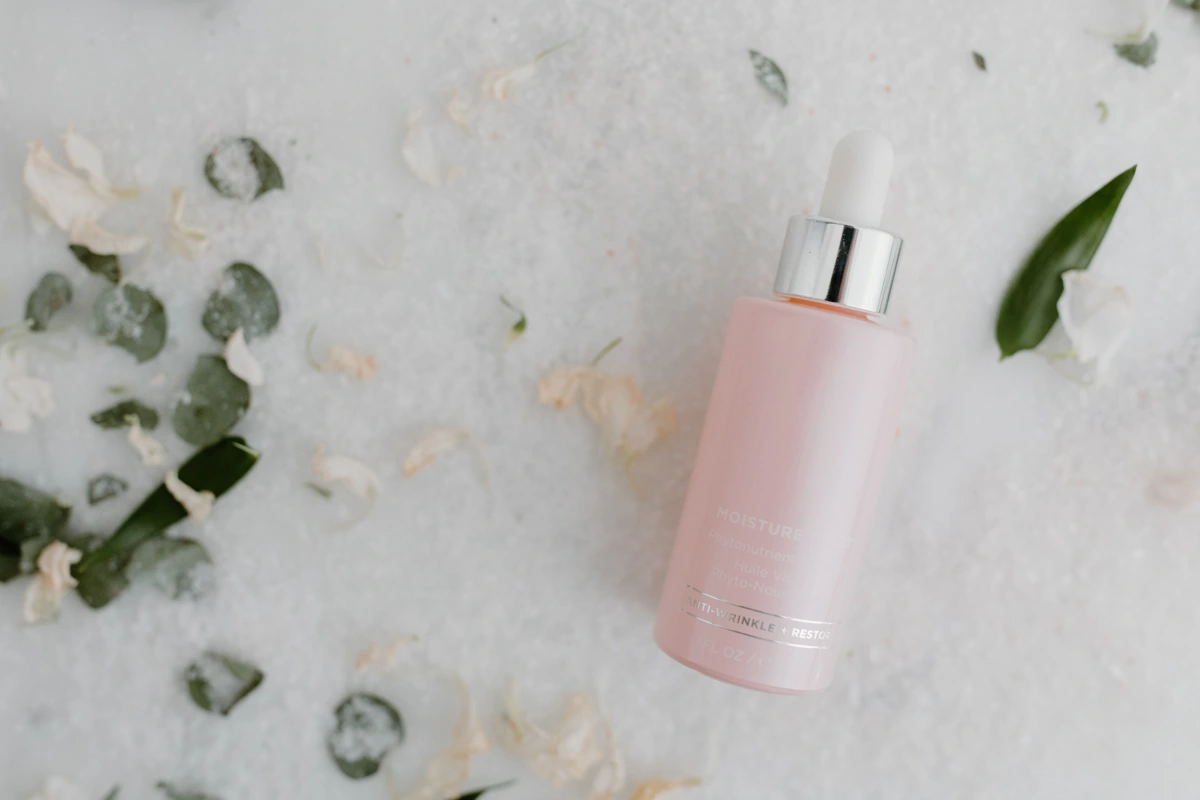
The original pink moisturizer bottle sits among pale flowers and leaves. A muted sage-green background makes the requested change easy to compare with the source.
Original photo. Tara Winstead / Pexels.First result · 99 seconds. Click for the untouched downloaded PNG.
Exact prompt:
Replace the floral background and scattered leaves with a smooth solid muted sage green background. Keep the same pink moisturizer bottle, silver cap, label, angle and size. Preserve the existing product lighting and add a subtle soft shadow. No extra objects, text or logos.
What happened: Both runs removed the flowers and leaves and created a muted green background with a new soft shadow. The faint label lettering was not reliably reproduced.
What to check before using it: Inspect the low-contrast lettering, silver cap and bottle outline. A pleasing color contrast is not enough to approve a result with inaccurate packaging text.
See the same-input repeat · 100 seconds
The original input, prompt, model and settings were unchanged.
The repeat produced the same sage-green background type. The shade, shadow and fine lettering differ slightly from the first run; the repeated background change does not approve the packaging text.
Use the editor's before/after slider, then open your downloaded result at full size. Small thumbnails can hide the details that matter in a listing.
Shape and scale: compare the cap, dropper, bottle shoulders, base and angle. A similar-looking bottle can still have different proportions.
Labels and print: check the brand name, ingredients, capacity and fine print. A prompt asking to keep text is a request, not a guarantee.
Edges: look around transparent caps, reflective metal, narrow gaps and the product's outline. Reject missing pieces, halos or background remnants.
Shadows and reflections: check whether the contact shadow and light direction make sense. Generative editing may change the bottle's highlights as well as its surroundings.
The full frame: look for leftover props, extra objects, unwanted writing, cropping and an unexpected change of viewpoint.
Keep the original when any required product detail is wrong. These edits can help explore a backdrop, but a changed label is not an acceptable trade-off for an accurate catalog image. There is no pixel-lock mode in the workflow shown here.
Make a background prompt easier to follow
A useful starting structure is:
Replace [the current background] with [surface or color]. Keep [the product and viewpoint you want]. Use [lighting and shadow]. Remove [specific distractions]. Do not add [unwanted objects or text].
Make one main request at a time. If your first request fails, describe the visible problem in the next prompt. For a fair comparison of two background ideas, start each run from the same original and change only the background description. Review the product again after every run.
Questions before your first edit
Does “keep the label” preserve every letter?
No. The results above are generative edits, not original-pixel composites. Labels, reflections, product angles and shapes can change. Inspect the output and reject it when those changes make the product inaccurate.
Will the same prompt produce the same picture?
Our repeats produced the requested background types with visible differences in the images. Reusing the input, prompt and settings lets you repeat the workflow; it is not a promise of an identical image on every run or future model version.
Is the white result ready for any marketplace?
Check your marketplace's current requirements yourself. A near-white generated backdrop is not proof of a pure-white background, accepted crop, accurate label or platform approval. We did not submit these images to a marketplace.
Can I download the result for free?
These six Local runs and their PNG downloads used the free photo-edit allowance. A free account currently gets 20 Local edits each day, resetting at midnight UTC. Sign-in is required. Other models and tools can have separate credit costs.
Where do I start?
Open the photo editor, upload one photo and try one background prompt. Compare the product before you use the image.
Photo credits and test notes
Original photographs are credited beside each example and used under the Pexels License, which allows use and modification. The photographers and depicted brands do not endorse HeyDreaming. These examples are demonstrations, not customer testimonials.
The input photos and downloaded PNG outputs are shown without manual product retouching or compositing. Display previews are resized WebP files; the result links open the original downloaded PNGs. The timing table reports only these observed runs. It does not establish accuracy across other photos or guarantee a turnaround time.
Try a new background on your own photo
20 free AI photo edits a day on HeyDreaming Local. Upload a photo, describe the background, and compare the result. Sign in to generate; no credit card needed.