Plain backgrounds for Depop listing photos
Make photo one of your Depop listing a clear shot of the item on white or a plain backdrop. The item is cut from the photo you took; White background uses no generative AI.
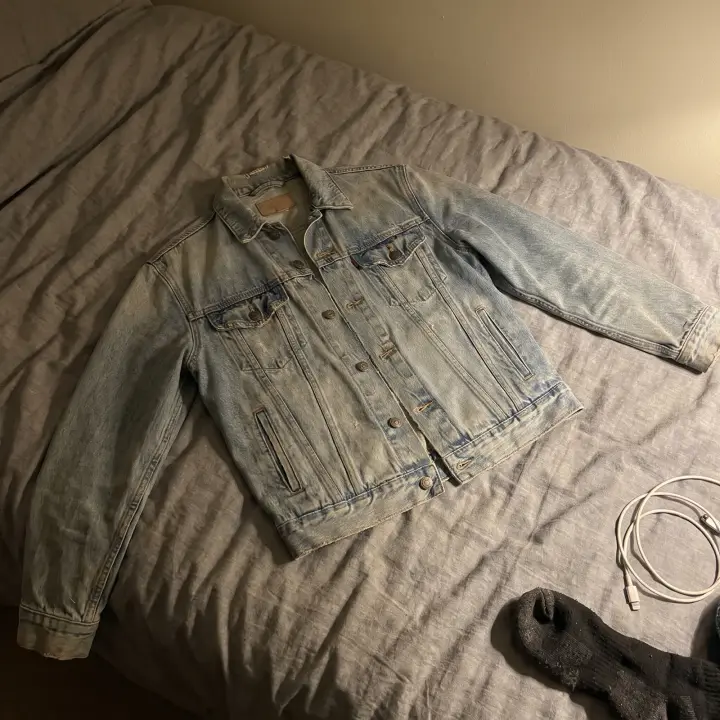 Before
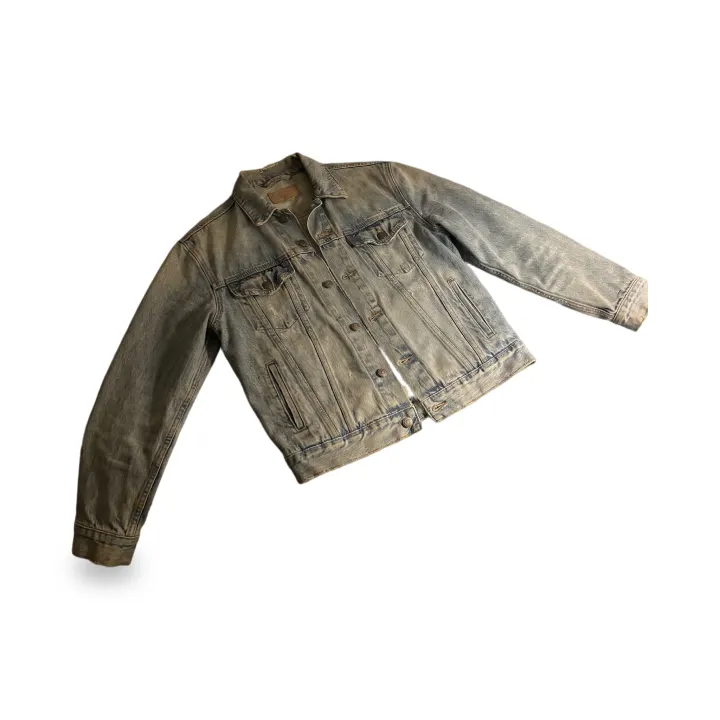 After
Photos (1–4)
Works best with one product per photo. Anything touching the product stays in the picture.
Background
Pure white (#FFFFFF), soft contact shadow, in seconds. Check the edges before downloading.
Aspect ratio
Free account · your photo stays on this page while you sign in with Google
No Google account? Sign in with email
Your edited photo appears here
Add product photos and press the button below. White backgrounds take seconds.
Can I edit my Depop photos?
We found no rule about changing a photo's background on Depop's help pages (read November 17, 2026). What they do say is that "When listing an item for sale, it's a seller's responsibility to ensure that the description and photos accurately reflect the item." Wrong colours and undisclosed wear count as significantly not as described. Whether an edited photo still reflects your item accurately is your call: with White background the item is cut from your photo by a cut-out model, so check colours and edges against the real thing.
Quoted from the source
What Depop asks of listing photos
Depop's Community Guidelines say:
- “All sellers should make sure every listing has honest descriptions and photos.”
- “Use original images”
- “Never use stock photos or copied listings”
Its page on 'significantly not as described' says this, and lists these among the issues it covers:
- “When listing an item for sale, it's a seller's responsibility to ensure that the description and photos accurately reflect the item.”
- “Wrong colours”
- “Major wear or flaws which were not detailed on the listing”
Depop's selling guide adds these tips "To increase your chances of selling":
- “Include a clear item description, accurate brand names and photos that accurately represent your item”
- “Describe and include photos of any faults”
- “Double-check your items are authentic, and include photos of any labels and tags”
- “Always use original photos — your listing will be removed if you use stock images”
And its page on stock images:
- “Only use photos taken by yourself”
Know before you list
Before you list on Depop
Photo one is what Visual Search matches
Buyers can search Depop with a photo. Depop's help says "the first photo on your listing is what we match against a buyer's image. So it's worth making photo one a clear, well-lit shot of the item itself." A whole-item shot on white or a plain background suits photo one. Its tips for buyers also warn: "Heavy filters can change the colour we're matching against."
Keep the colours true
Wrong colours are one of the issues Depop's not-as-described policy covers. Check colours after any edit. A brightening tool can shift them: if you use the Photo Enhancer, compare with the real item and lower its strength if they drift.
Four in the app, eight on the web
Depop's listing help says "Add up to four photos and one video" in the app and "Add up to eight photos" on Depop.com. One HeyDreaming run (up to 4 photos) covers an app listing. On the web you can drag edited files into a draft, and "If you want to add photos from your phone, upload them in the app, and they’ll sync to your web drafts."
Depop's own photo tools
When you add photos to a web draft, "you can choose a cover image to use, crop the photo, or delete it." The help pages we read don't describe a background tool for listing photos. Depop's Outfits feature (iOS) clips items out of listings for outfit collages; it is a tool for planning and shopping looks, not a listing editor.
Photo size
Depop's help pages we read don't give a pixel size. The free Depop size tool makes a 1200 × 1200 square copy in your browser; its page says that is a common size, not an official one.
Resize for DepopHonest listing photos
A cleaner background for your listing
The item comes from your photo
White background uses no generative AI: a cut-out model takes the item from your photo and puts it on pure white. With New scene the image model redraws a thin outline around the item, and see-through parts such as lace or mesh can be redrawn too, so compare before you list.
One look across your shop
White background gives every photo the same plain look. With New scene and 2–4 photos, each photo gets its own scene on the free plan. On Pro, Same scene for every photo puts them on one shared background when the photos were taken from the front; photos taken from above each get their own scene for now. If a shared scene can't be made, each photo gets its own.
5 free photos a day
Every account gets 5 free photo edits a day with no watermark. Pro raises it to 100 a day (up to 30 of them new scenes) when you list in bulk, and adds one ZIP download for a whole batch.
How it works
From floor photo to listing photo
01
Shoot the real item
One whole item per photo, in daylight, with some floor or wall around it. Fault, label and tag photos don't need editing: list those as they are.
02
Pick a background
White background (fastest) or New scene with one of the plain presets. The prompt only describes the background.
03
Generate
Sign in with Google when you press Generate. White takes seconds; a new scene takes a few minutes.
04
Compare, then list
Check the result against your original. If anything about the item looks different, use the original photo instead.
Optional
Tell buyers what you edited
Paste this into your listing description if you like. It is not required by us; check Depop's own rules.
Keep exploring
Explore More
Common questions
Depop photo editing — FAQ
Does Depop allow edited photos?
We found no Depop rule about background edits. Its Community Guidelines ask for "honest descriptions and photos" and original images, and its policy says it's the seller's responsibility that photos accurately reflect the item. So use your own photo, keep fault photos as shot, and check that the edited photo still shows the item accurately. Read Depop's current help pages before you list. HeyDreaming is not affiliated with Vinted, Depop, eBay or Poshmark.
What exactly does the editor change?
It depends on the mode. The item is cut out of your photo and resized to fit the frame; small separate pieces (a loose belt, one earring of a pair) can be dropped. White background uses a cut-out model and no generative AI. With New scene the image model draws the background and also redraws a thin outline of the item; parts the cut-out sees as see-through (lace, mesh, fringe) count as background and can be redrawn. Anything touching the item, such as a hanger or a hand, stays in the picture.
Which photo should I edit first?
Photo one. It is the cover, and it is the photo Depop's Visual Search matches against a buyer's picture. Fault, label and tag photos are better left as you shot them.
Should I edit photos of faults or labels?
No. Depop asks for photos of any faults and of labels and tags, and undisclosed wear counts as significantly not as described. List them as you shot them.
Can it remove wrinkles or put my clothes on a model?
No, and this page doesn't offer it. Removing wrinkles, adding a model or changing the item means an AI redraws the item, and the photo would no longer show what the buyer receives. Steam or iron the item and reshoot instead.
Clean up your next listing
5 free photos every day. White background uses no generative AI.
Edit a listing photoHeyDreaming is not affiliated with Vinted, Depop, eBay or Poshmark.
Depop pages quoted on this page, read : Depop Community Guidelines · Depop: What does Depop consider 'significantly not as described'? · Depop: Selling on Depop · Depop: What are 'stock images'? · Depop: How to list an item · Depop: Listing on web · Depop: How to use Visual Search on Depop · Depop: Outfits