White backgrounds for eBay listing photos
Cut the item out of the photo you took and put it on white for your eBay main photo. A cut-out model does the work, with no generative AI, and the result has no border, text or watermark.
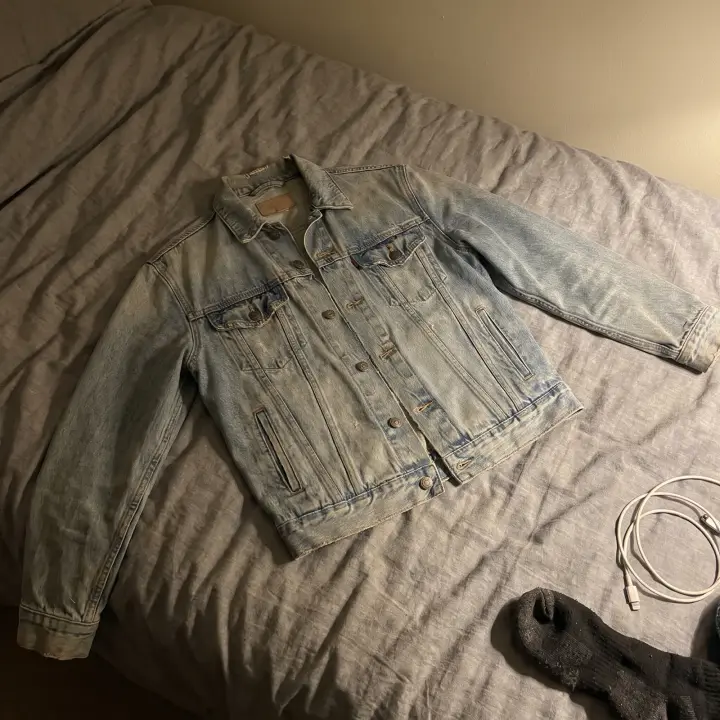 Before
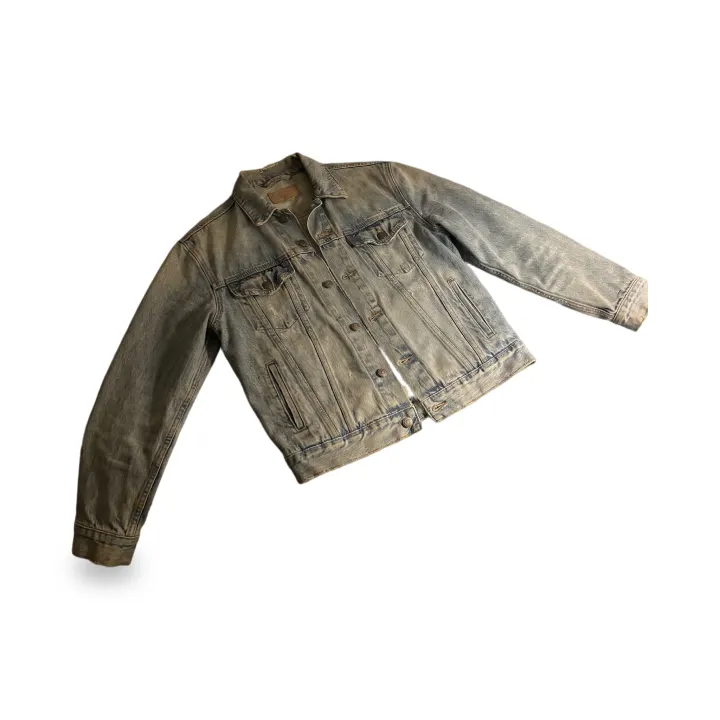 After
Photos (1–4)
Works best with one product per photo. Anything touching the product stays in the picture.
Background
Pure white (#FFFFFF), soft contact shadow, in seconds. Check the edges before downloading.
Aspect ratio
Free account · your photo stays on this page while you sign in with Google
No Google account? Sign in with email
Your edited photo appears here
Add product photos and press the button below. White backgrounds take seconds.
Can I edit my eBay photos?
eBay's own listing tool can replace a photo's background: on the web it offers a solid white background, and the eBay app also offers AI-generated backgrounds. Its Picture policy doesn't list a new background among the things it forbids, but it does not allow "Photos that don't accurately represent the item", added borders, added text, artwork or marketing material, or watermarks. So the photo still has to show the item accurately, and that call is yours. HeyDreaming cuts the item from your own photo and doesn't add borders, text or watermarks; how each mode treats the item is in the FAQ below.
Quoted from the source
eBay's picture rules
The Picture policy lists what is not allowed, then the minimum size:
- “Photos that don't accurately represent the item”
- “Placeholder images used to convey messages”
- “Stock photos for used, damaged, or defective items”
- “Photos with added borders”
- “Photos with added text, artwork or marketing material”
- “Watermarks of any type, including those used for ownership attributions”
- “Photos must be at least 500 pixels on the longest side.”
eBay's photo tips add:
- “Your main photo should show the whole item face-on.”
- “For bundles, your main photo should show all items for sale”
- “If your item has any flaws, scratches or other imperfections, show clear, closeup images of them.”
- “You can’t use a catalog or stock photo if you’re listing an item as used.”
Which tool
eBay's background tool or this editor?
eBay's help page describes a background enhancement tool in its listing flow: on the web, the Background icon replaces the background with solid white; in the eBay app you can choose White or AI-generated backgrounds (Studio, Surface, Outside). Both are fine to try. Here is how they differ.
Use eBay's tool when
- You are already in eBay's listing form and only need one or two photos on white.
- You list on eBay only and don't need the same photos elsewhere.
- You want a scene from the eBay app's AI-generated backgrounds; check the item's edges there too.
Use HeyDreaming when
- You prepare photos before you list, up to 4 per run, and want to compare each result with your original first.
- The same photos go to eBay and other marketplaces, so one white or plain look covers all of them.
- You want a plain scene preset instead of white, for example the light Plain grey backdrop.
Know before you list
Before you list on eBay
24 pictures, 12MB each
eBay lets you add up to 24 pictures; each file can be up to 12MB, in JPEG, PNG, GIF, TIFF, BMP, WEBP, HEIC, or AVIF. eBay keeps your photos in completed listings for up to 90 days, so you can reuse them when you relist. HeyDreaming edits 4 per run: do the main photo and the key angles, and upload flaw close-ups as shot.
Used items: your own photos only
eBay's tips say "You can’t use a catalog or stock photo if you’re listing an item as used." HeyDreaming starts from a photo you took and never adds catalog or stock images; the item in the result is cut from that photo.
Bundles: check every piece
eBay asks that the main photo of a bundle show all items for sale. The cut-out can drop small separate pieces, so count the items in the result before you use it, or shoot the bundle touching or overlapping.
Shiny items and size shots
eBay's tips say "for shiny or reflective items like a piece of jewelry, a darker background may work better". New scene's Plain grey backdrop preset is a light grey, only a little darker than white; jewelry with fine chains or separate pieces can lose or redraw them, so compare closely. A coin or ruler lying apart from the item can be dropped by the cut-out, so list size shots unedited, as eBay suggests: "If the size of your item isn’t clear, add a photo with a coin or ruler next to the item to indicate its size".
Size and shape
eBay asks for at least 500 pixels on the longest side and recommends about 1600 x 1600; its tips say 1:1 and 16:9 photos display well. The editor's Aspect ratio control includes 1:1 and 16:9, and the free eBay size tool resizes a photo to 1600 × 1600 in your browser.
Resize for eBayHonest listing photos
A cleaner background for your listing
The item comes from your photo
White background uses no generative AI: a cut-out model takes the item from your photo and puts it on pure white. With New scene the image model redraws a thin outline around the item, and see-through parts such as lace or mesh can be redrawn too, so compare before you list.
One look across your shop
White background gives every photo the same plain look. With New scene and 2–4 photos, each photo gets its own scene on the free plan. On Pro, Same scene for every photo puts them on one shared background when the photos were taken from the front; photos taken from above each get their own scene for now. If a shared scene can't be made, each photo gets its own.
5 free photos a day
Every account gets 5 free photo edits a day with no watermark. Pro raises it to 100 a day (up to 30 of them new scenes) when you list in bulk, and adds one ZIP download for a whole batch.
How it works
From floor photo to listing photo
01
Shoot the real item
One whole item per photo, face-on for the main photo, in daylight. Flaw close-ups and size shots with a coin or ruler don't need editing: list those as they are.
02
Pick a background
White background (fastest) or New scene with one of the plain presets. The prompt only describes the background.
03
Generate
Sign in with Google when you press Generate. White takes seconds; a new scene takes a few minutes.
04
Compare, then list
Check the result against your original. If anything about the item looks different, use the original photo instead.
Optional
Tell buyers what you edited
Paste this into your listing description if you like. It is not required by us; check eBay's own rules.
Keep exploring
Explore More
Common questions
eBay photo editing — FAQ
Does eBay allow a new background on listing photos?
eBay's own listing tool offers one: a solid white background on the web, and White or AI-generated backgrounds in the app. Its Picture policy forbids photos that don't represent the item accurately, added borders, added text, artwork or marketing material, and watermarks of any type. Compare the result with the item before you list, and read eBay's current policy. HeyDreaming is not affiliated with Vinted, Depop, eBay or Poshmark.
What exactly does the editor change?
It depends on the mode. The item is cut out of your photo and resized to fit the frame; small separate pieces (a loose belt, one earring of a pair) can be dropped. White background uses a cut-out model and no generative AI. With New scene the image model draws the background and also redraws a thin outline of the item; parts the cut-out sees as see-through (lace, mesh, fringe) count as background and can be redrawn. Anything touching the item, such as a hanger or a hand, stays in the picture.
What size should eBay photos be?
eBay's Picture policy says: "Photos must be at least 500 pixels on the longest side." Its photo tips recommend images of about 1600 x 1600 and accept files up to 12MB. The free eBay size tool makes a 1600 × 1600 copy in your browser.
Will eBay accept the file?
eBay's help lists JPEG, PNG, GIF, TIFF, BMP, WEBP, HEIC, or AVIF as accepted formats, up to 12MB each. The editor gives you a normal image file to upload like any photo; if it is over the limit, the free image compressor makes it smaller in your browser.
Can it remove wrinkles or put my clothes on a model?
No, and this page doesn't offer it. Removing wrinkles, adding a model or changing the item means an AI redraws the item, and the photo would no longer show what the buyer receives. Steam or iron the item and reshoot instead.
Clean up your next listing
5 free photos every day. White background uses no generative AI.
Edit a listing photoHeyDreaming is not affiliated with Vinted, Depop, eBay or Poshmark.
eBay pages quoted on this page, read : eBay Picture policy · eBay: Adding pictures to your listings