How to Blur License Plates in Photos: One Image or a Batch
Cover license plates on up to 20 car photos in your browser, no upload or account. Steps, cover styles, missed plates and an export checklist.
By HeyDreaming
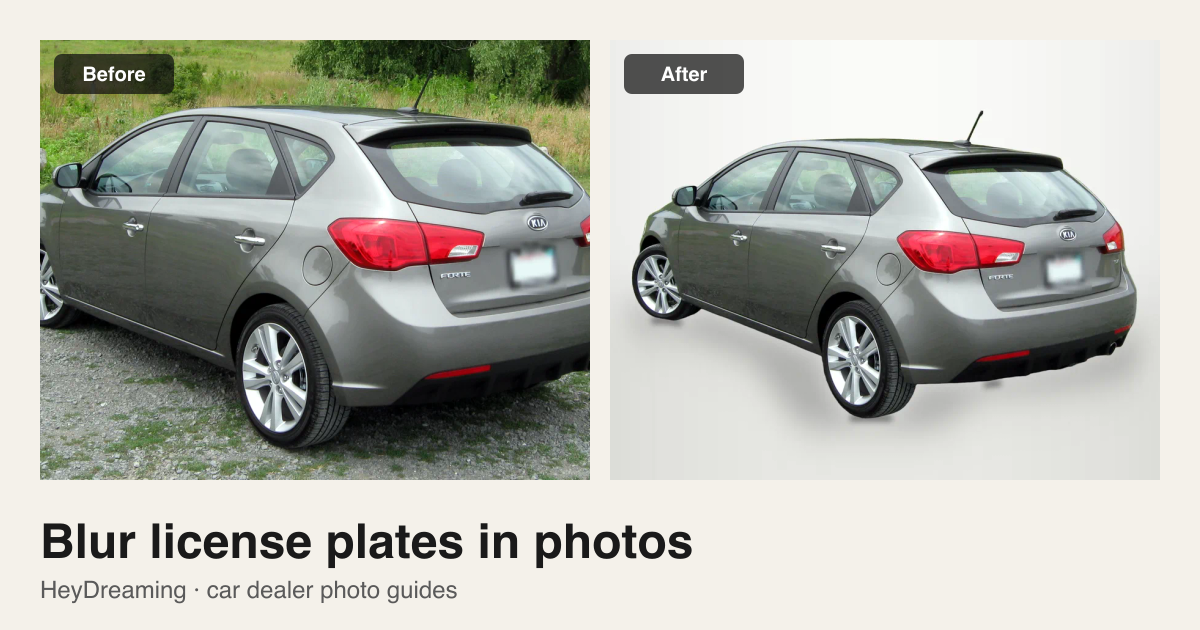
Prepared by HeyDreaming, which provides the browser-based license plate blur tool and AI car photo editor described in this guide. The license plate tool runs locally on your device without uploading photo files or requiring an account. The tool applies covers to selected areas without generatively redrawing the vehicle. Exports are re-encoded (PNG inputs export as PNG; JPEG and WEBP inputs export as JPEG), so compression can affect pixels outside the covered area. Automated detection boxes require visual review, and plate covers do not guarantee complete anonymity.
When preparing vehicle photos for a listing, you may want to obscure registration numbers without generatively redrawing the car.
For a single photo, you can add a shape in graphics software like Preview or Photoshop. But editing multiple photos by hand is repetitive and often leaves uneven box sizes across the set.
For listing sets, HeyDreaming's free license plate blur tool processes up to 20 photos at once. It runs inside your browser session without an account or remote file uploads, suggests plate boxes, applies your chosen cover style, and exports individual files or a ZIP archive.
Step-by-step: cover plates on up to 20 photos
- Add your photos. Open /tools/blur-license-plate and select up to 20 JPEG, PNG, or WEBP vehicle photos. Processing is local; files stay on your device.
- Review suggested boxes. The on-device detector suggests rectangular boxes over visible plates. Automated detection is a helpful starting point, not a guarantee. Drag a box to move it or its corner handle to resize it, delete unneeded boxes, or drag across a missed plate to draw a new box.
- Choose your cover style. Select Blur, Pixelate, Solid, Your logo, or None.
- Export. A single photo downloads individually; multiple photos download as a ZIP archive. Re-encoding applies on export: PNG inputs export as PNG; JPEG and WEBP inputs export as JPEG.
Cover styles: Blur, Pixelate, Solid, Logo, or None
Blur and pixelate apply a coarse grid, while solid and logo covers render an opaque rectangle over the selected box.
| Cover style | Visual appearance | Best used for | What to inspect before publishing |
|---|---|---|---|
| Blur | Coarse grid blur over characters | Listings where an unobtrusive photographic look is preferred | Check at 100% zoom that characters are not readable through the coarse grid |
| Pixelate | Coarse mosaic block pattern | Listings where an obvious, deliberate redaction is preferred | Check that distinctive character stems (such as 8 vs. B) are broken up |
| Solid | Opaque dark neutral block over the selected box | Opaque coverage directly over the plate face | The cover extends slightly past the box on every side, so fit the box to the plate rather than the bumper |
| Your logo | Dealership logo on an opaque white cover | Dealer inventory needing consistent lot branding across vehicles | Confirm the logo is centered and does not overlap parking sensors or grilles |
| None | Applies no cover over the plate area | Vehicles already fitted with physical dealer promotional plates | Verify that no private registration numbers are visible; re-encoding still applies |
Edge cases: missed, angled, and background plates
Always inspect your photos for three common situations:
- Missed plates: Plates recessed inside dark honeycomb grilles, off-center mounts, or plates coated in road dust can be missed by automated detection. If skipped, draw a rectangular box manually.
- Angled and three-quarter shots: In three-quarter shots (standard angles in our 12-shot car photography checklist), plates appear skewed in perspective. A rectangular box can leave outer corners exposed or overlap bumper paint. Resize the box so all characters are covered without clipping parking sensors or lights.
- Background vehicles: Shots on active dealership lots often capture other parked cars. The detector may suggest boxes on them or skip them. Draw boxes over any background plates you want covered, or consider background replacement if lot clutter is distracting.
Cover the plates before you post
Up to 20 photos, processed in your browser. Check every box and downloaded image. Free, no sign-up.
Inspect downloaded files at full size
A browser thumbnail is too small to confirm whether plate characters are readable. Extract the ZIP or open the downloaded file and inspect at full size (100% zoom):
- Check character legibility: Confirm that registration numbers, letters, and regional stickers cannot be read.
- Check box margins: Ensure the box covers the plate face without clipping model badges, cameras, or bumper sensors.
- Preserve your originals: Keep untouched camera originals stored in a separate archive folder so you always retain an unmodified master copy.
When a complete vehicle set is a different job
Covering plates on up to 20 photos solves a specific redaction task. But merchandising a full 12- to 50-photo listing under one stock number is a broader workflow.
In batch car photo editing, the process handles the whole vehicle:
- Placing exterior shots onto a consistent studio backdrop (White sweep, Light grey, Dark grey, or Showroom soft) using the AI car photo editor.
- Keeping interior cabin, console, and odometer photos as photographed without artificial cutouts.
- Exporting a structured ZIP named by stock number (
STOCK_01.jpg,STOCK_02.jpg) with an accompanying manifest.
Use the free plate tool when plate covering is your only task. Use a complete vehicle batch workspace when standardizing an entire inventory listing set.
Per-image export acceptance checklist
Run through this checklist on every exported image before posting:
| Checkpoint | What to check | What to look for |
|---|---|---|
| Character readability | Numbers, letters, and state stickers | Characters are not decipherable at 100% zoom |
| Box placement | Box boundary relative to plate | Box covers the plate cleanly without spilling onto sensors or grilles |
| Perspective coverage | Three-quarter and angled views | Outer corners of angled plates are enclosed inside the box |
| Background vehicles | Parked cars in background | Any visible background plates are covered as intended |
| Car surface integrity | Unrelated vehicle surfaces | Paint, badges, glass, and wheels remain sharp without unwanted redrawing |
| Archive backup | Untouched camera originals | Unmodified source files are safely stored in an archive folder |
When your photos are ready, cover license plates in HeyDreaming for quick redactions, or open Vehicles to prepare and review an entire vehicle set.
Cover the plates before you post
Up to 20 photos, processed in your browser. Check every box and downloaded image. Free, no sign-up.
Keep exploring