Batch Car Photo Editing for Dealer Listings
Edit every photo of one vehicle under its stock number: upload order, review decisions, ZIP and manifest checks, and how many cars a day allows.
By HeyDreaming
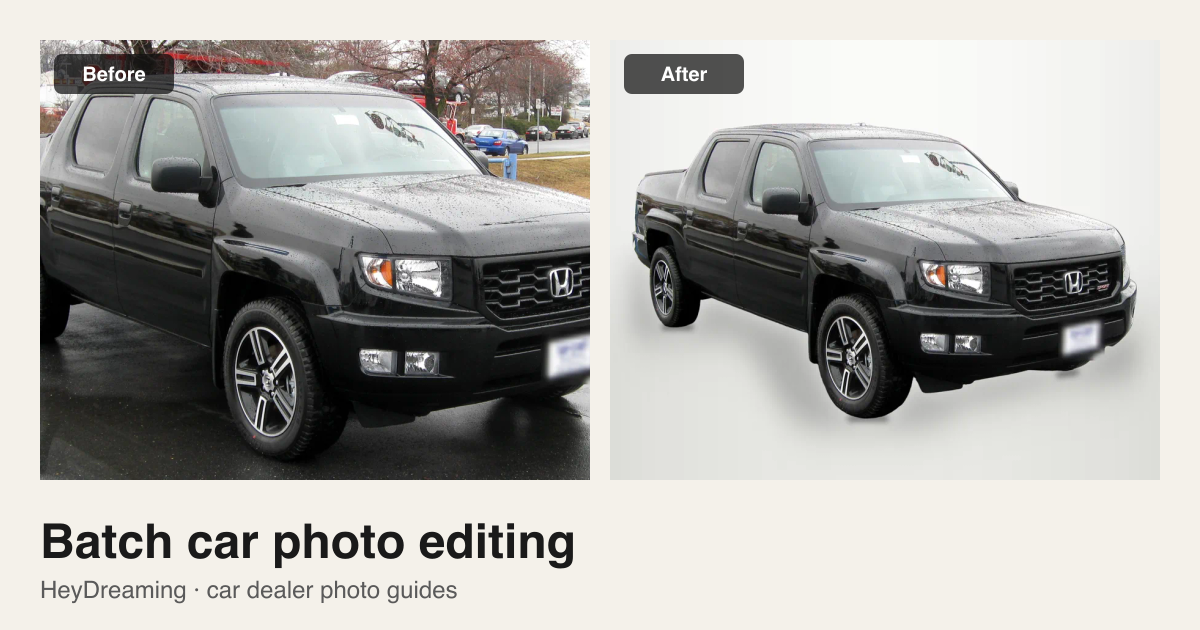
Prepared by HeyDreaming, which provides the AI car photo editor and Vehicles batch workspace described in this guide. The five-frame review is an illustrative workflow example, not an empirical test run. HeyDreaming provides structured file exports (ZIP archives and manifests) and does not integrate directly with dealership management systems (DMS) or automatically publish listings to third-party marketplaces.
"Batch" can mean three different things when you edit vehicle photos:
- Single-photo quick edits: Cropping one image or redacting a plate on a single trade-in.
- Whole-vehicle batching: Preparing a complete 12- to 50-photo listing set for one vehicle under a single stock number—standardizing exterior backgrounds while preserving interior and condition photos as photographed.
- Enterprise DMS syndication: Automated FTP feeds or direct dealership management system (DMS) publishing across multi-rooftop dealer groups.
HeyDreaming's AI car photo editor and Vehicles workspace focus on the second level: giving dealership teams and private sellers a way to turn source lot photos of one vehicle into a consistently formatted, reviewable ZIP package.
The Vehicles workspace workflow
Managing an entire vehicle set happens inside the Vehicles workspace, which requires signing in to track projects and apply daily plan allowances.
- Create the vehicle record. Enter your vehicle's inventory stock number (such as
A1234). Exported image names and the ZIP archive use this identifier. - Select your exterior background and dimensions. Choose one of four fixed studio backdrops: White sweep, Light grey, Dark grey, or Showroom soft. Choose an export dimension: standard listing 4:3 (1920×1440) or prepared original dimensions. Kept original photos fit the 4:3 canvas with padding rather than cropping.
- Upload photos in your intended sequence. Upload up to 50 JPEG, PNG, or WEBP photos for the vehicle. Before you create the vehicle, drag the thumbnails into listing order; the first photo becomes the listing cover and the order sets the numbered positions (
STOCK_01,STOCK_02, etc.). Photos you add after creating the vehicle go to the end. Use our 12-shot car photography checklist and downloadable CSV checklist to plan the sequence before uploading. The CSV does not import into the workspace or rename source files; check the numbered positions after upload. - Review classifications and "Needs check" flags. Exterior photos have their backgrounds replaced with your selected backdrop. Photos classified as interior cabin views or condition close-ups are kept as photographed by default. The Approve all ready action excludes Needs check items. Inspect flagged frames individually, and check unflagged results too: automated checks can miss edge issues.
- Confirm plate redactions. Check suggested license plate boxes and apply your preferred cover style, or review our how to blur license plates tutorial for standalone redaction rules.
- Approve, save and export. Every frame must be approved or skipped, with at least one approved. Choose JPEG or PNG output, wait for plate choices to save successfully, then select Download ZIP. Resolve a failed save before downloading.
A hypothetical five-frame walkthrough
To illustrate how decisions are made during batch review, consider this hypothetical five-frame vehicle set. This is an illustrative workflow model, not an actual field test:
| Frame | Photo type | Image condition | Workspace action | Review decision |
|---|---|---|---|---|
| 01 | Front 3/4 (exterior) | Shot on flat asphalt; entire car visible | Background replaced with White sweep | Accept: Silhouette is clean; ground shadow anchors tires |
| 02 | Driver profile (exterior) | Another lot car touched the rear bumper in frame | Inspect the silhouette even if no flag appears | Reshoot or keep original: Adjacent-car pixels remain attached to the result |
| 03 | Straight rear (exterior) | Clear shot, but dealer transport plate visible | Background replaced; plate box suggested | Accept: Confirm plate cover box snugly covers characters |
| 04 | Dashboard wide (interior) | Natural ambient cabin lighting | Classified as interior; kept original | Keep: Cabin detail remains authentic without cutout |
| 05 | Odometer (condition) | Sharp display showing mileage | Classified as close-up; kept original | Keep: Mileage digits clear and legible for buyer inspection |
The 4-way review decision framework
When inspecting a processed batch, sort each frame into one of four decisions:
- Accept: Exterior shots where the vehicle outline is crisp, wheels are fully grounded by the shadow, and glass reflections look natural.
- Keep (original): Interior cabin views, engine bays, tire tread close-ups, and condition flaws that must remain unedited to provide an honest vehicle record.
- Skip: Redundant angles, duplicate shots, or blurry frames that do not add value to the listing.
- Reshoot: Photos where tall grass hid lower bumpers, severe glare clipped panel contours, or obstructions touched the vehicle body. AI background replacement cannot reconstruct missing parts.
Prepare one stock-number set
Sign in to create a vehicle, upload up to 50 photos and review the results before exporting. Daily editing allowances apply.
Inspecting the exported ZIP and manifest
When processing completes, the workspace delivers a structured ZIP archive containing:
- Sequentially numbered images: Files named
A1234_01.jpg,A1234_02.jpg, etc., matching your intended upload sequence. - A manifest (
manifest.csv): Records each exported filename, original filename, dimensions, cover choice, corrections, source/output hashes and any separate full-size file. Hash and pixel checks do not prove that the vehicle outline is usable.
Extract the ZIP and compare the actual files with your choices:
| Check | What should agree |
|---|---|
| Vehicle and order | Stock number and numbered positions refer to the intended vehicle and sequence; skipped positions can leave gaps |
| Dimensions | At Listing 4:3, every main image is 1920×1440; original-size mode can keep different prepared source sizes |
| Kept views | Interiors and condition photos retain the photographed view; padding fits them without cropping when needed |
| Covers and corrections | Downloaded plate covers and the manifest match the saved selections; any optional correction was intentional |
| Full-size files | If fitting a kept photo required a separate copy, check its path under originals/; keep camera originals separately too |
| Visual quality | Inspect badges, mirrors, thin antennas, wheels and source glass at full size, including frames marked Ready |
Approve only files you would publish. A manifest is a delivery record, not an independent condition inspection.
Planning daily allowances without credit confusion
When budgeting batch photo editing, understand how plan allowances operate:
- Free accounts: Include 20 photo edits per day after sign-in without a credit card.
- Pro ($29/month) and Max ($99/month): Both include 100 photo edits per day (see HeyDreaming pricing and our detailed car photo editing cost breakdown).
Daily allowances do not roll over: Unused edits do not accumulate into a monthly bank of credits. For allowance planning only, five sets that each consume 20 edits would use 100 edits. That is arithmetic, not measured daily throughput or a promise of five accepted sets. Check remaining allowances and other photo work before uploading; the 50-photo set capacity does not grant 50 free edits.
Operational boundaries
HeyDreaming is an image processing tool, not a dealership management system. It does not offer:
- Direct API integration with DMS inventory software.
- Automated FTP hot-folder imports or syndication feeds.
- Automated listing publishing to third-party marketplaces.
Your team downloads the reviewable ZIP and manifest, then uses the reviewed files in your chosen listing workflow.
When your photos are organized, sign in and open Vehicles to prepare your next stock-number set.
Prepare one stock-number set
Sign in to create a vehicle, upload up to 50 photos and review the results before exporting. Daily editing allowances apply.
Keep exploring