Blur, Pixelate, Solid or Logo: Compare License Plate Covers
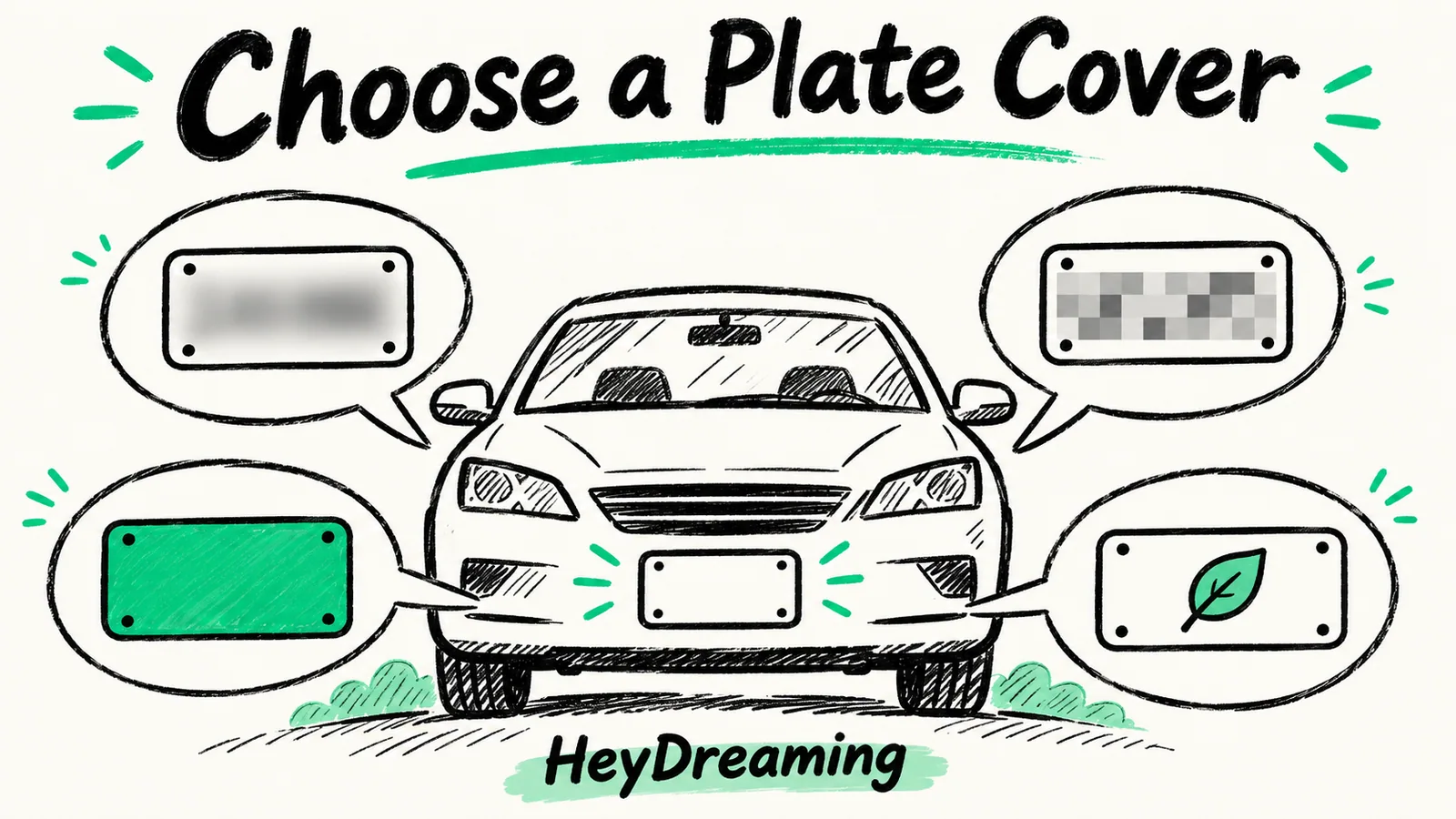
Compare actual Blur, Pixelate, Solid and Logo exports. Check readable characters, box margins and missed plates instead of trusting the preview alone.
By HeyDreaming
Published by HeyDreaming, which supplies the tools described. Examples reuse dated internal QA on public-source images, not customer results. The worksheet is manual and does not add product functionality.
Choose a plate-cover style by inspecting the actual saved result, not only its label. When deciding between blur vs pixelate license plate treatments—or opting for solid fills and branded dealer logos—merchandisers must weigh visual aesthetics against data obscurity. Compare readable character strokes and the box edges. Opaque covers fill the selected rectangle, but a misplaced or missed box can still leave text visible.
To explore masking workflows and background plate detection checks, review our guides on how to blur license plates in photos and our step-by-step license plate cover workflow.
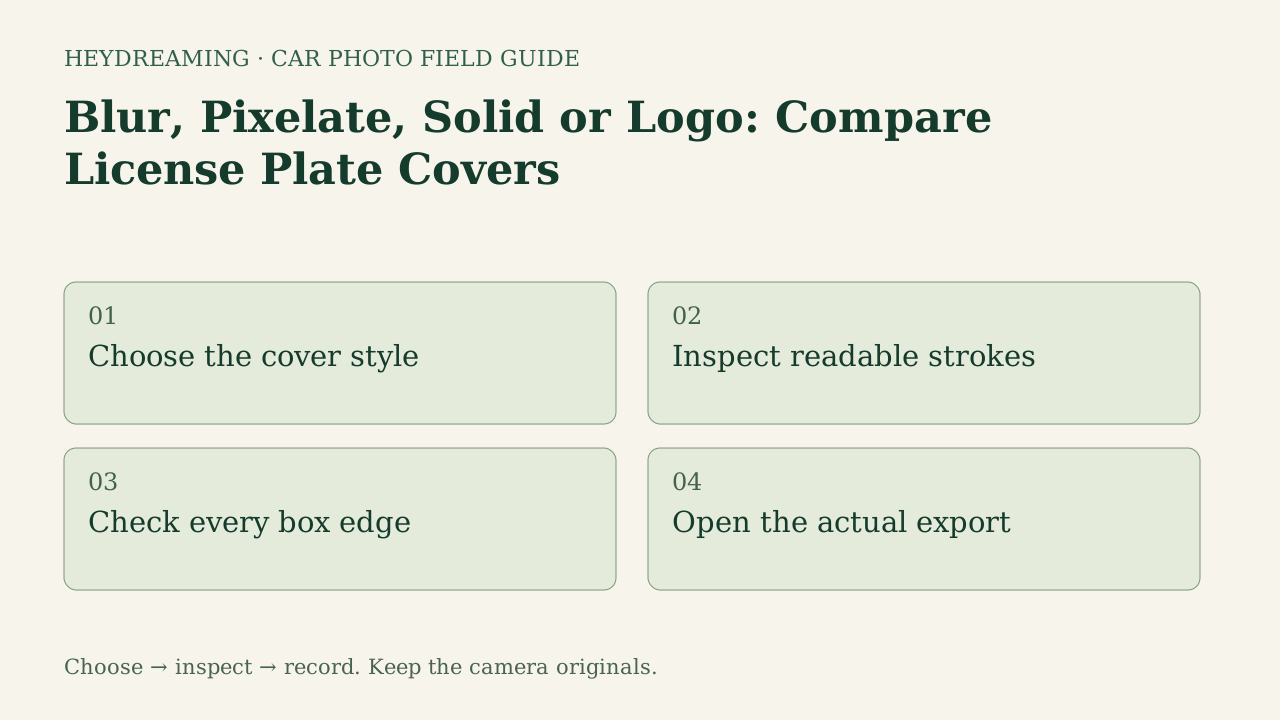
Open the full license plate cover comparison diagram (SVG)
Note: The diagram above is an explanatory workflow mapping plate cover styles, not a measured statistical chart.
Comparing the Four Plate Cover Modes
HeyDreaming's standalone plate tool processes batches of up to 20 photos directly in the browser without sign-in, operating locally without debiting photo quotas:
- Blur: Applies Gaussian smoothing across the plate area, blending into surrounding bumper contours.
- Pixelate: Replaces plate characters with downsampled mosaic tiles, clearly signaling intentional redaction.
- Solid: Overwrites plate pixels with an opaque color box, within the selected rectangle; check whether the box covers every required stroke.
- Your logo: Replaces plate text with a dealer branding mark on an opaque white rectangle, without simulating a physical plate. Check both coverage and nearby vehicle details.
Empirical Two-Photo Test Suite
To record a bounded internal comparison, HeyDreaming recorded an internal QA benchmark on October 31, 2026, using two public-domain test vehicles: an outdoor white 2010 Acura RDX and an outdoor red 2011 Mazda3 sedan. Both vehicles were exported from the standalone plate tool across all four styles (Blur, Pixelate, Solid, and Logo), generating four ZIP archives containing eight exported JPEGs.
In these test exports, primary plate characters were unreadable across all four modes within selected detail views. However, this observation reflects these specific test frames; it does not constitute a mathematical guarantee of absolute anonymity or permanent protection against optical reconstruction techniques.
Acura RDX Comparison Crops
The crops below illustrate the four styles applied to the front bumper of the 2010 Acura RDX:

2010 Acura RDX photographed by IFCAR (Public domain). Standalone plate tool export showing Gaussian blur detail on the primary plate.

Gaussian blur applied to the Acura front plate.
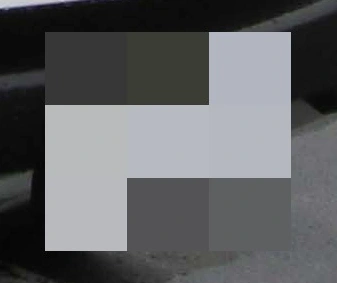
2010 Acura RDX photographed by IFCAR (Public domain). Standalone plate tool export showing mosaic pixelation detail on the primary plate.
Mosaic pixelation converting characters into blocky tiles.

2010 Acura RDX photographed by IFCAR (Public domain). Standalone plate tool export showing solid opaque color fill over the primary plate.
Opaque solid fill in the selected plate box; inspect its edges.

2010 Acura RDX photographed by IFCAR (Public domain). Standalone plate tool export showing the owned HeyDreaming app icon rendered on an opaque white box.
Custom logo mode overlaying a brand mark on white backing.
Mazda3 Comparison Crops and Real Detection Recovery
The crops below illustrate the four styles applied to the front bumper of the 2011 Mazda3 sedan:
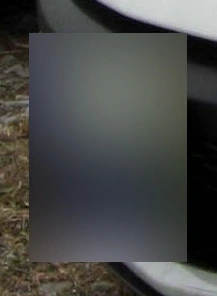
2011 Mazda3 sedan photographed by IFCAR (Public domain). Standalone plate tool export showing Gaussian blur detail on the Mazda primary plate.

Gaussian blur applied to the Mazda front plate.
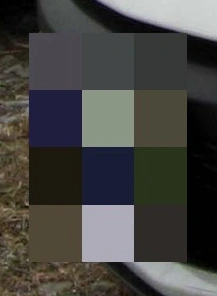
2011 Mazda3 sedan photographed by IFCAR (Public domain). Standalone plate tool export showing mosaic pixelation on the Mazda primary plate.
Mosaic pixelation across the Mazda plate area.
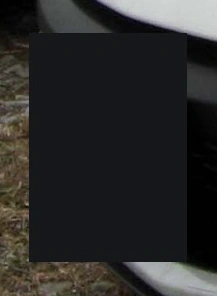
2011 Mazda3 sedan photographed by IFCAR (Public domain). Standalone plate tool export showing solid opaque color fill on the Mazda primary plate.
Opaque solid fill across the Mazda plate frame.

2011 Mazda3 sedan photographed by IFCAR (Public domain). Standalone plate tool export showing the owned HeyDreaming app icon on the Mazda primary plate.
Custom logo mode applied to the Mazda bumper.
During testing, automated detection missed a partial background plate on the far-right edge. The tester reopened the batch, drew a second box over the missed plate, and exported a Solid ZIP. Review the entire frame and actual saved file; this was an agent-operated internal check, not a measurement of dealer staff time. The logo shown is HeyDreaming’s owned app icon, not a dealership endorsement.
Cover the plates before you post
Up to 20 photos, processed in your browser. Check every box and downloaded image. Free, no sign-up.
Cover Style Evaluation Matrix
The table below contrasts the characteristics and trade-offs of the four plate cover options:
| Cover Mode | Visible Treatment | Appearance to Review | Use to Evaluate | Key Reviewer Watchpoint |
|---|---|---|---|---|
| Blur | Smoothing | Blended area | Whether softened characters remain readable | Edge characters legible under high contrast |
| Pixelate | Mosaic blocks | Visible tiles | Whether strokes remain recognizable | Coarse blocks can spill onto painted valance |
| Solid | Opaque selected rectangle | Flat color box | Coverage and position of the selected region | Box margins must stay within plate frame |
| Your Logo | Logo on opaque backing | Brand mark on white | Legibility of an owned or permitted mark | Logo flat on white box; use an owned or permitted logo |
Using the Plate Cover Comparison Worksheet
To evaluate cover effectiveness across your inventory photography, download our manual operational worksheet:
Download the blur, pixelate, solid or logo license plates worksheet (CSV)
The template provides four structured rows matching each cover mode: Blur, Pixelate, Solid, and Your logo. Staff record filename, characters_visible (Yes/No), box_margins (Within Frame / Spilling), nearby_condition_visible, saved_file_checked, and notes.
This worksheet is a manual auditing aid. It does not interface automatically with camera hardware or dealer management systems. Quality staff review exported files at 100% zoom, confirm bounding margins do not conceal bumper wear or fog lamps, verify that registration numbers are unreadable, and sign off on output files.
Practical Tool Boundaries and Workflow Scope
When using HeyDreaming's plate tools, keep documented platform boundaries in mind:
- Browser-local processing: The standalone plate tool operates up to 20 images per session locally in the browser. Model loading and analytics use network access, but no server image upload was observed in tested execution. However, this is not a blanket network security audit.
- Workflow separation: The standalone plate tool is separate from the Vehicles batch editor. Custom dealer logo selection is available exclusively in the standalone plate tool; the self-serve Vehicles flow does not support logo insertion.
- No perspective warping: Logo covers render centered on an opaque white box. The software does not simulate 3D curvature, physical chrome plate frames, or road dirt weathering.
- Export re-encoding: Selecting "None" still re-encodes images through the browser canvas. Untouched camera originals must always be archived locally.
Frequently Asked Questions
How should I choose a plate-cover style?
Compare the four saved outputs against your chosen visual policy. Inspect all character strokes and box margins, including other vehicles. This test did not establish a privacy ranking, anonymity or reconstruction resistance.
Can blur or pixelation be reversed by artificial intelligence?
This internal comparison did not test character-recovery attacks, so it cannot answer that security question. It checks visible cover placement and readable text in the recorded outputs. Do not treat a style choice as a guarantee of privacy.
Why do logo overlays have a white rectangular background?
The standalone plate tool places uploaded logos onto an opaque rectangular white box so the mark is displayed on opaque backing. That backing does not validate box placement or find missed plates; inspect the saved file and the rest of the frame.
Immediate Next Step
Start with one owned photo in the standalone plate tool. Compare the saved Blur, Pixelate, Solid and Logo results at 100% zoom and at the intended display size. Record readable strokes, margins and any missed region before selecting a style. Background replacement in the AI car photo editor is a separate workflow.
Cover the plates before you post
Up to 20 photos, processed in your browser. Check every box and downloaded image. Free, no sign-up.
Keep exploring