Car Photo White Balance: Check the Optional Correction
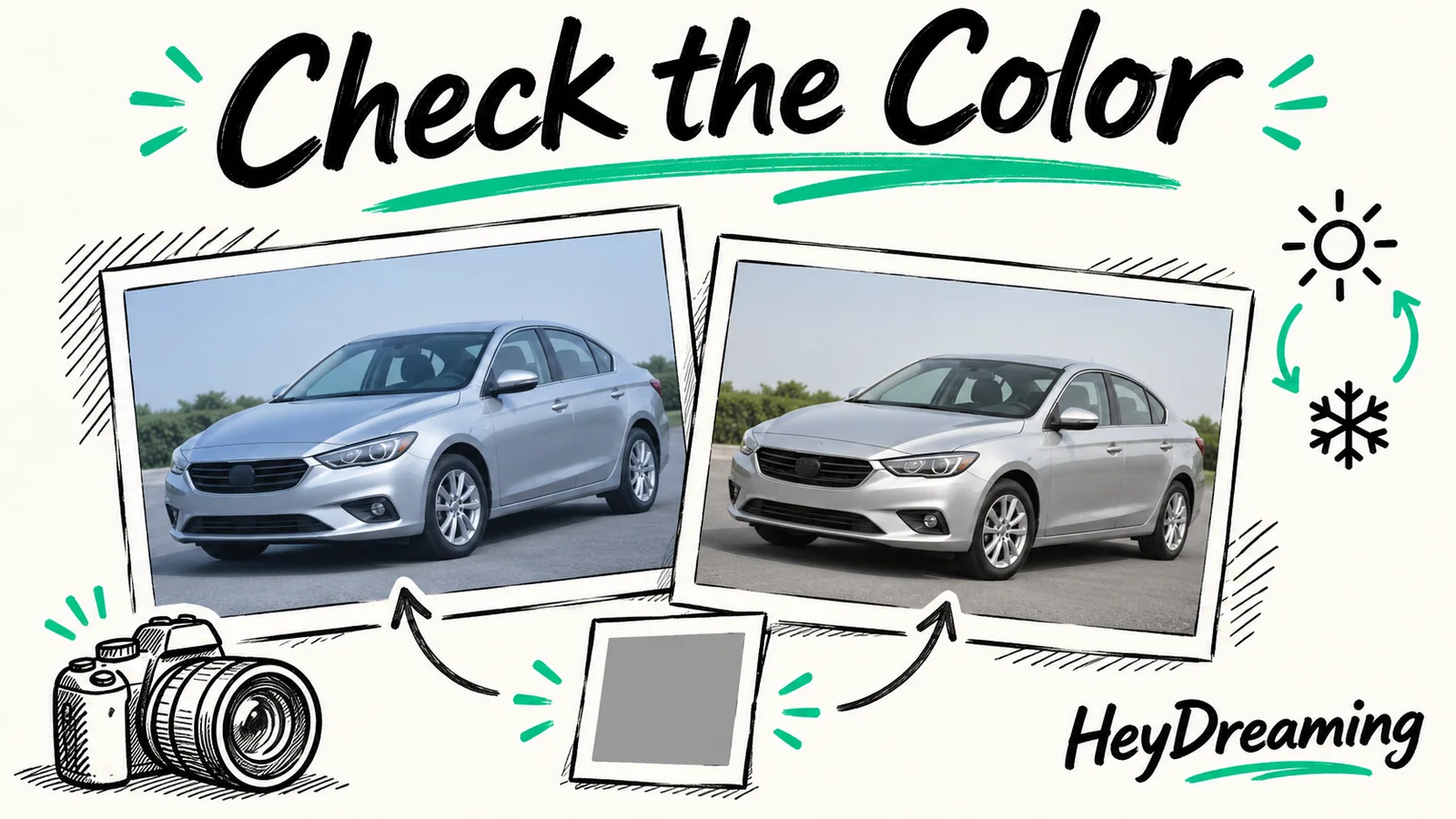
Compare default and color-only outputs from a deliberately blue test image. Understand optional white balance, changed pixels and the limits of paint matching.
By HeyDreaming
Published by HeyDreaming, which supplies the tools described. Examples reuse dated internal QA on public-source images, not customer results. The worksheet is manual and does not add product functionality.
A car photo can have a color cast, but a painted surface is not itself a neutral reference. Check the source, the selected correction and the saved result together. Evaluating car photo white balance requires understanding how automated color correction algorithms adjust image pixels and recognizing the boundary between global color normalization and physical paint reality.
To review where color adjustments fit within broader quality control and ethical editing standards, consult our guide on car background removal problems, our review protocol for car photo before and after review, and our principles for honest car photo editing.
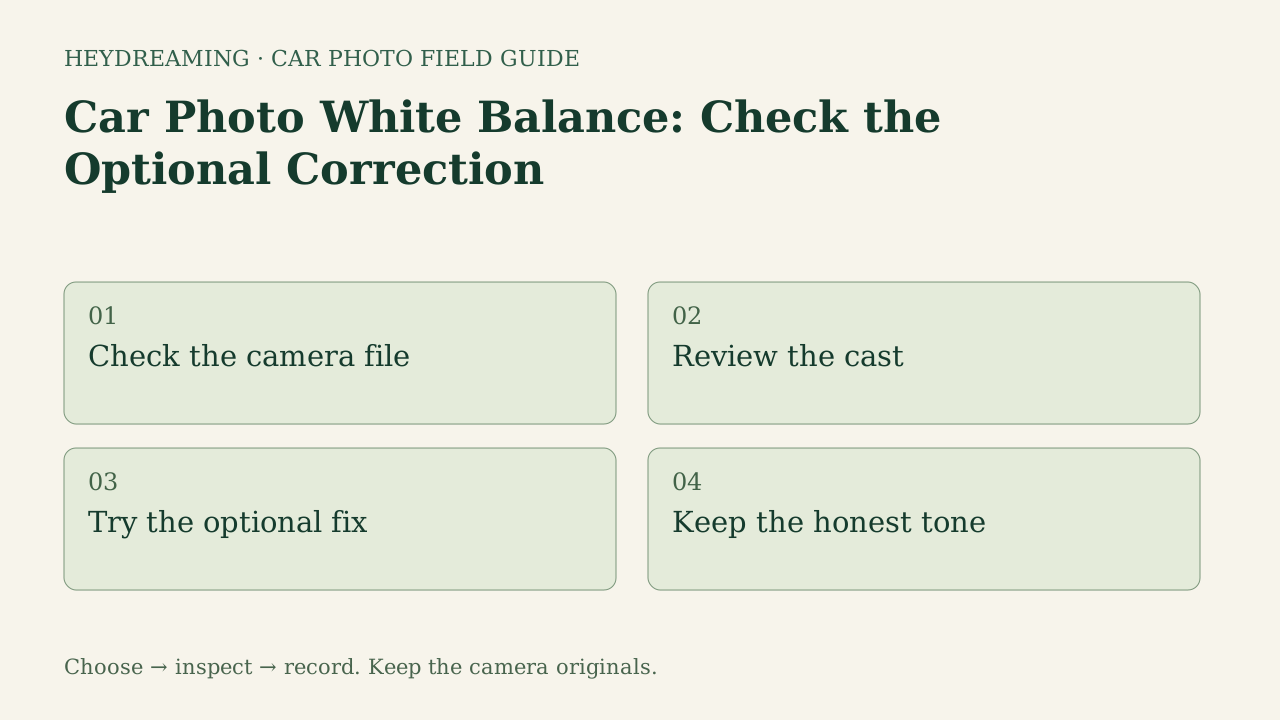
Open the full white balance correction workflow diagram (SVG)
Note: The diagram above is an explanatory workflow mapping white balance inspection stages, not a measured statistical chart.
Controlled Mazda Fixture Disclosure
Before analyzing visual results or pixel metrics, it is vital to disclose that the test asset used in our internal evaluation was deliberately and artificially degraded for an internal software test. The source image—a public-domain photo of a 2011 Mazda3 sedan—was pre-processed prior to upload:
- Artificial color shift: RGB channels were multiplied by [0.90, 1.00, 1.12] to impose an intentional blue-cyan color bias.
- Artificial tilt: The image was rotated 3 degrees counter-clockwise on an expanded black canvas.
- Encoding: Saved at JPEG quality 95 before standard browser upload preparation re-encoded the file.
This test fixture does not represent a naturally defective customer photo, a physical paint calibration standard, or an independent horizon leveling proof. It provides a reproducible software fixture; it does not measure how often the correction succeeds on dealership captures.
Operational Color Gains and Measured Core-Pixel Shifts
In HeyDreaming, optional white balance and horizon leveling are disabled by default. When enabled, the tool executes automated algorithmic estimations rather than providing manual RGB gain sliders or user-entered degree input fields.
During internal testing recorded on October 31, 2026, four execution paths were tested on the Mazda fixture: default baseline without corrections, color-only correction, level-only correction, and combined color plus leveling.
In the color-only correction run, the automated algorithm calculated and applied global operational color gains of [1.1216, 1.0059, 0.8975] across the RGB channels. Comparing the default baseline output against the color-corrected output demonstrated a recorded pixel change:
- Opaque vehicle core pixels in the lossless masters, using the same prepared input and mask: Out of 986,068 measured core pixels within the eroded opaque vehicle silhouette, 960,593 pixels differed between the default and color-corrected outputs.
- Visual outcome: The algorithmic gain compensated for the artificial [0.90, 1.00, 1.12] tint, shifting sheet metal tones back toward neutral baseline values.
Inspect the before-and-after evidence below to observe the impact of this global transform:
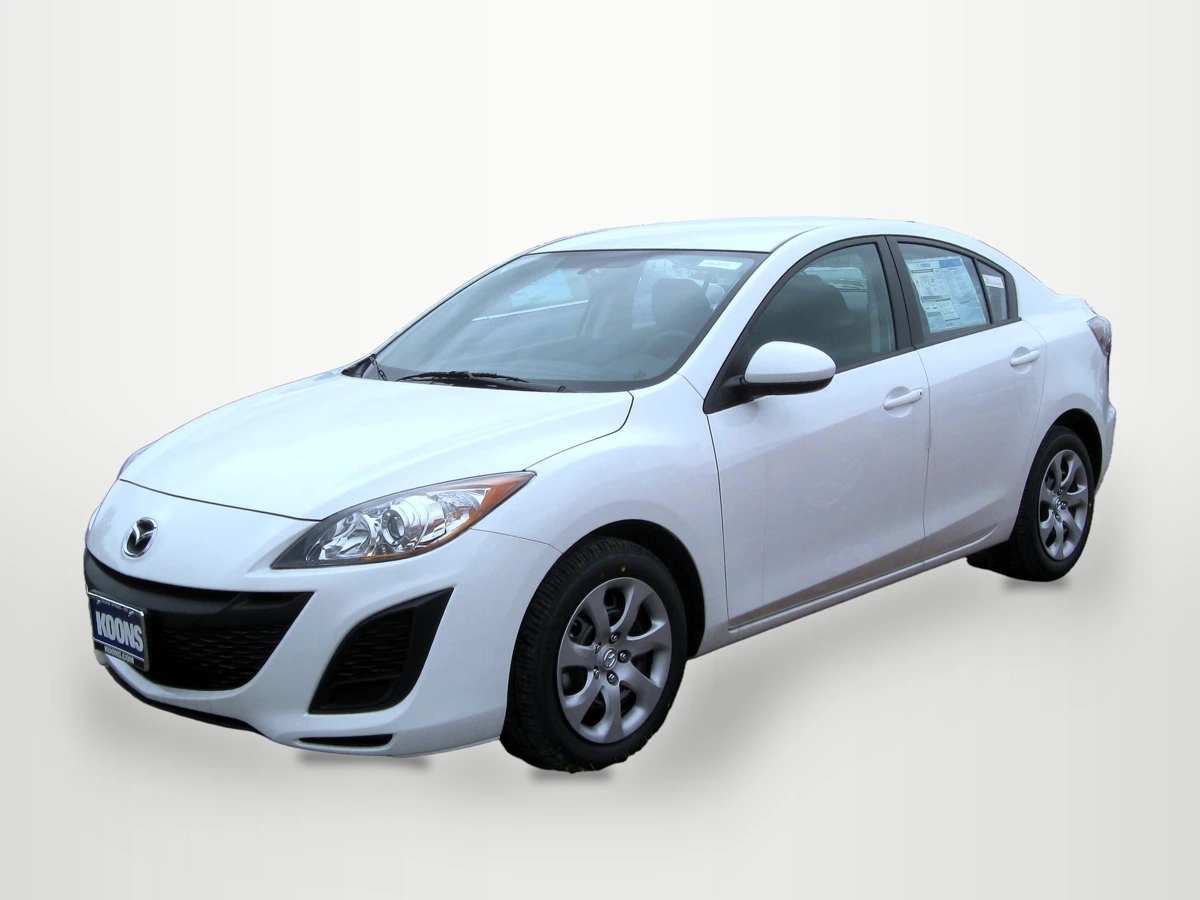
2011 Mazda3 sedan photographed by IFCAR (Public domain). Output image generated with HeyDreaming default settings without color correction; background replaced, scaled to 1920x1440, and re-encoded to WebP preview for web display.

WebP previews are compressed versions of actual downloads. This preview shows the default baseline output from the artificially altered Mazda fixture without color correction applied.
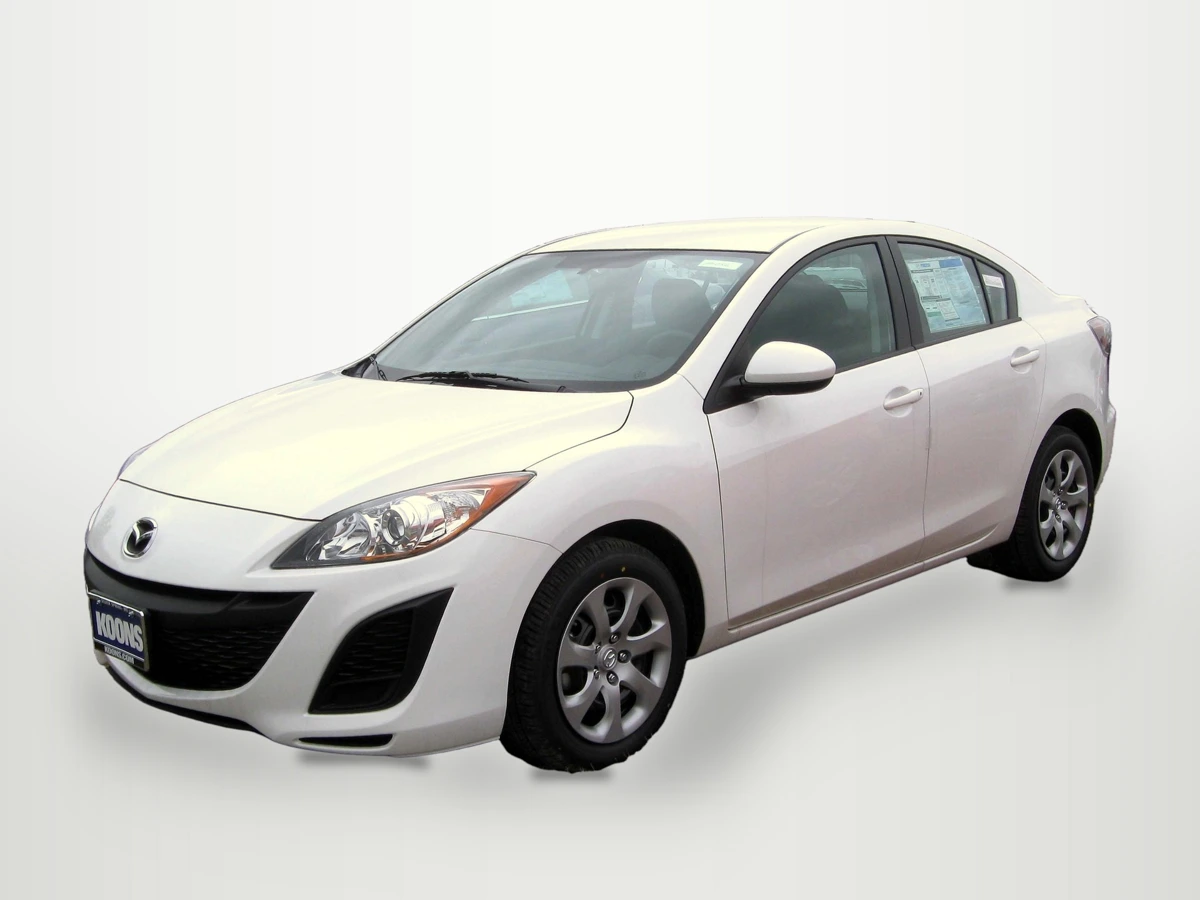
2011 Mazda3 sedan photographed by IFCAR (Public domain). Output image generated with HeyDreaming color-only correction; background replaced, scaled to 1920x1440, and re-encoded to WebP preview for web display.
WebP previews are compressed versions of actual downloads. This preview shows the output after applying optional automated color correction (operational color gains [1.1216, 1.0059, 0.8975]), altering 960,593 out of 986,068 core vehicle pixels.
Put your car on a clean background
20 free AI photo edits a day. Copy your source vehicle onto a fixed background, then check the outline and plate cover. Sign in to start; no credit card needed.
Physical Paint Uncertainty and Algorithm Boundaries
While global color balance adjustments can normalize lot casts, dealerships must understand the technical boundaries of automated correction:
- No physical paint calibration: Automated white balance balances mathematical color distributions across the frame. It does not calibrate against manufacturer paint codes or physical colorimetry swatches.
- Global, not selective: The selected correction changes color values globally rather than by a reviewer’s panel-level brush. The software does not provide selective brushes to isolate panels, nor does it remove localized glare, specular sun reflections, or harsh lens flare.
- Paint color ambiguity: For subtle factory finishes—such as metallic pearls, champagne silvers, or pearl whites—an intentional paint undertone should not be assumed to be a defect. Staff must visually verify that vehicle finishes are not desaturated into generic grey.
- Independent quota consumption: Starting a new single-photo correction job uses daily allowance. In a vehicle set, selected corrections use the separate redo mechanism, with at most two redos per frame. Do not equate all toggles or retries with a new daily-charge event.
Inspection Stages for White Balance Review
The table below outlines the four primary checks when evaluating color adjustments on inventory photos:
| Check Stage | Evaluation Focus | Pass Criteria | Risk / Rejection Trigger |
|---|---|---|---|
| Camera Reference | Assess raw staging capture | Natural ambient light without harsh colored spill | Overwhelming yellow or blue sodium-lamp cast |
| Default Processing | Review baseline output | Compare visible tone/details with the same source; physical accuracy uncalibrated | Noticeable environmental tint polluting paint |
| Color-Only Correction | Evaluate algorithmic gains | Compare the color-only change against default and your available reference | Factory pearl or metallic tint desaturated |
| Paint Uncertainty | Verify against lot reality | Record available reference and any unresolved color uncertainty | Disputed vehicle color on customer arrival |
Using the White Balance Inspection Worksheet
To document color evaluations systematically, download our manual tracking template:
Download the car photo white balance worksheet (CSV)
The template provides four structured rows matching the inspection stages: camera reference, default no correction, color-only correction, and physical paint uncertainty. Reviewers record stock_number, source_filename, observed_result, decision (Accept Default, Apply Color, or Reshoot), reviewer, next_action, and notes.
This worksheet is a manual quality aid. It does not interface automatically with dealer management systems, pull camera EXIF data, or control software settings. A digital merchandiser evaluates sample vehicles, records the visible changes and remaining color uncertainty, and establishes consistent guidelines for lot photography staff.
Practical Tool Boundaries
When managing image processing in HeyDreaming, consider these operational boundaries:
- Optional corrections are off by default: White balance and horizon leveling must be explicitly enabled. They provide automated global transforms, not manual RGB channel sliders or user-entered rotation angles.
- Four fixed backdrop presets: The platform provides White sweep, Light grey, Dark grey, and Showroom soft. Switching backdrop tone changes the composite canvas, but does not alter cutout masks or fix clipped silhouette edges.
- Glass views remain visible: Background replacement isolates exterior sheet metal, but views and reflections captured through window glass are preserved.
- Daily edit quotas: Free accounts provide 20 daily photo edits, while Pro ($29/month) and Max ($99/month) tiers provide 100 daily edits. A new single-photo correction job uses daily allowance; vehicle-set redos have their own limit and accounting.
Frequently Asked Questions
Can automated white balance remove harsh sun glare from car hoods?
No. Automated color correction applies uniform mathematical gains across the image. It does not synthesize 3D lighting, eliminate blown specular reflections, or remove sun glare.
Why did color correction alter about 97.4% of the measured core in this test?
The applied channel gains changed RGB values at 960,593 of 986,068 sampled core pixels in this controlled pair. That is about 97.4%, not a universal rate or proof of correct paint color. Rounding, clipping, source values and gains affect which pixels differ.
When should dealership staff leave color correction turned off?
It starts off. Keep it off unless a documented source problem and comparison support using the suggestion. A finish name or daylight alone is not a validated decision rule; retain the default if the change is uncertain, or recapture with a better reference.
Immediate Next Step
Select one vehicle photographed under challenging lot lighting. Run a test exterior photo through the AI car photo editor with default settings, then run a second pass with optional color correction enabled. Compare the saved outputs with a suitable reference and document the visible change. An uncalibrated monitor or one fixture cannot settle physical paint accuracy; do not automatically apply one result across the inventory.
Put your car on a clean background
20 free AI photo edits a day. Copy your source vehicle onto a fixed background, then check the outline and plate cover. Sign in to start; no credit card needed.
Keep exploring