A Car Photo Editing Workflow from Source Check to Saved File
Follow one vehicle from source review through background choice, optional corrections, plate checks and the actual saved files. Includes a workflow worksheet.
By HeyDreaming
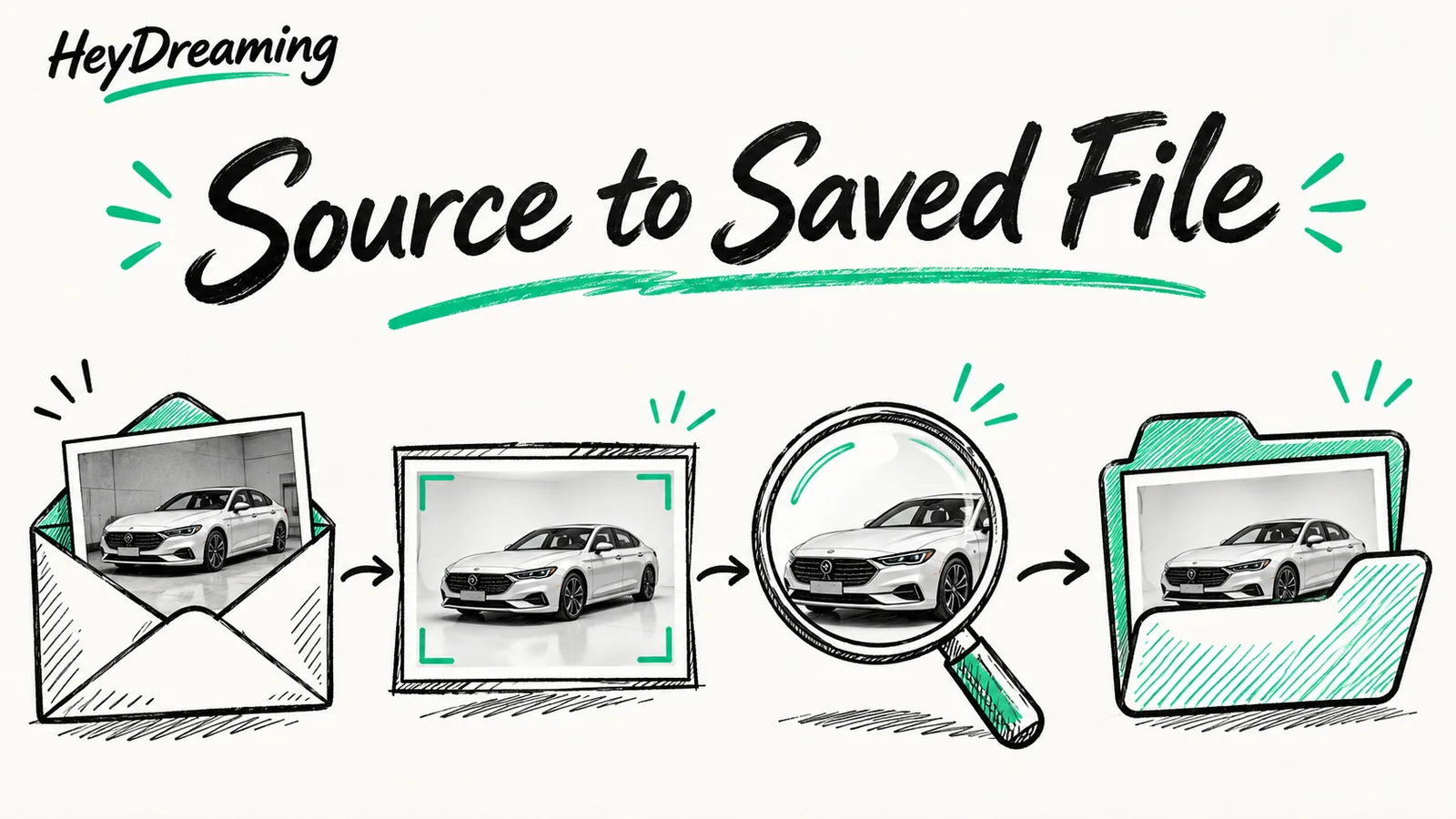
Published by HeyDreaming, which supplies the tools described. Examples reuse dated internal QA on public-source images, not customer results. The worksheet is manual and does not add product functionality.
Executing a repeatable vehicle merchandising pipeline requires a structured runbook that takes each vehicle from raw camera memory card to verified export. An organized car photo editing workflow makes each handling decision reviewable by establishing seven sequential checkpoints for every stock unit: verifying source capture roles, making scene handling decisions, applying approved background presets, evaluating global corrections, auditing silhouette outlines, reviewing license plate treatments, and verifying saved deliverables.
To explore how single-vehicle procedures scale across inventory batches, review our guide on batch car photo editing, alongside our governance frameworks in the multi-location car photo audit and the car photo revision log.
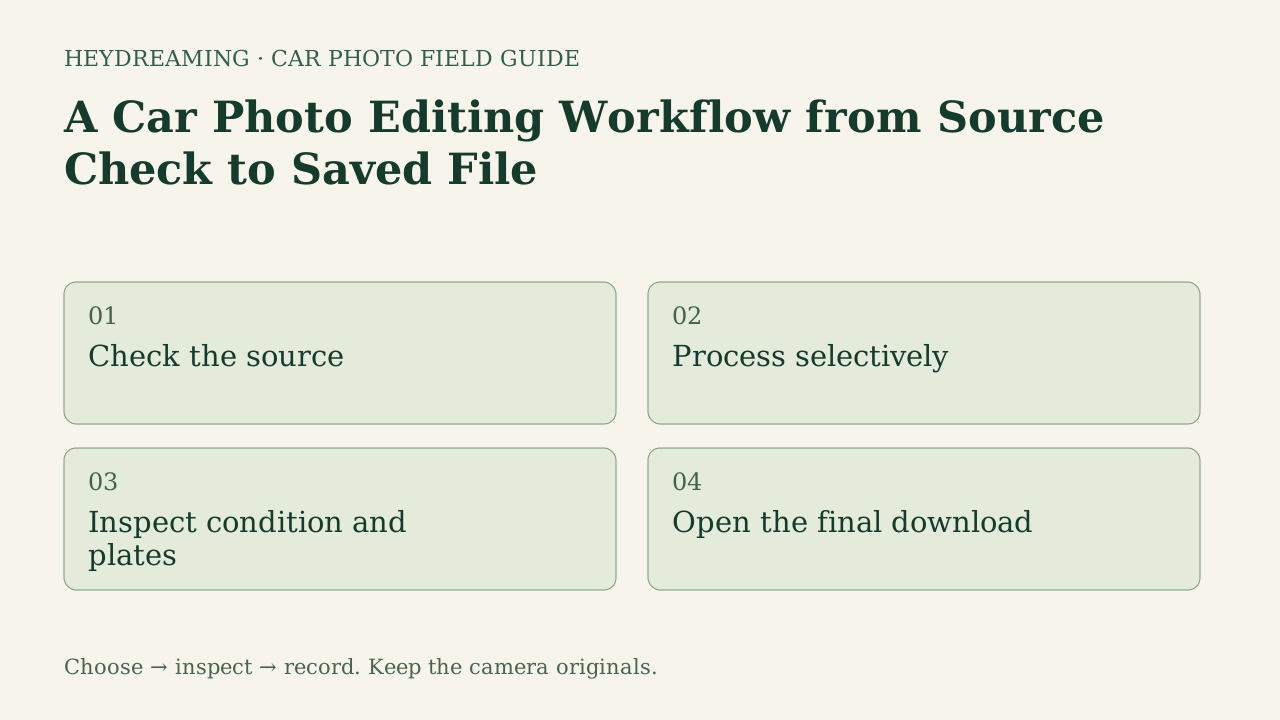
Open the full editing workflow diagram (SVG)
Note: The diagram above is an explanatory workflow mapping operational runbook stages, not a measured statistical chart.
The 7-Stage Single-Vehicle Runbook
Rather than treating image editing as an ad-hoc task, merchandisers follow an ordered sequence of seven operational stages for each vehicle set:
1. Source and Photo Role
The workflow begins by copying original captures to the team’s archive. Staff verify files match the stock number and VIN. Reviewers check optical sharpness on badges, wheels, and headlights, assigning each image to an intended role (e.g., front 3/4 hero, driver profile, odometer, dashboard, and cargo area). Untouched camera originals must be archived locally before initiating web uploads.
2. Scene Decision
Not every photo benefits from background replacement. Detailed interior close-ups, steering controls, odometer clusters, and cargo bays should retain their authentic photographed environment. In HeyDreaming, the Vehicles workflow classifies scenes before processing and normally keeps interior/detail frames without background replacement. Staff inspect scene designations to confirm the selected handling fits each photo. Kept files can still be prepared, padded or covered for export; they do not replace untouched camera originals.
3. Fixed Background Selection
For exterior shots requiring replacement, staff select from HeyDreaming's four fixed backdrops: White sweep, Light grey, Dark grey, or Showroom soft. Maintaining consistent backdrop selection across inventory categories can support a consistent presentation on dealer vehicle display pages. Custom generative 3D virtual showrooms and architectural modifications are outside system capabilities.
4. Optional Global Correction
If a source image has slight lot tilt or color cast from ambient lot lighting, staff can explicitly enable the offered global leveling and white balance suggestions. These controls apply uniform global mathematical transforms; manual brush retouching, selective pixel warping, and relighting are intentionally unavailable.
5. Outline and Condition Inspection
Once automated compositing completes, reviewers inspect vehicle outlines along rooflines, side mirror stalks, and tire contact patches. In the recorded two-car/four-preset test, each car’s four lossless masters had equal sampled opaque core pixels; that narrow result does not validate every outline. Therefore, reviewers must verify that outer silhouette edges are smooth and window glass preserves natural reflections. Critically, digital tools must never conceal physical dings, scratches, or wear. For a detailed image-level audit, consult our car photo quality checklist.
6. Plate Review
Using HeyDreaming's standalone browser-local plate tool, staff inspect all visible plate regions, including partial plates on other vehicles. The tool provides None, Blur, Pixelate, Solid color, or custom logo options. Because logo overlays render on an opaque white box rather than an angled perspective inlay, reviewers verify that badge graphics do not cover lower grille trim or sensor apertures.
7. Actual Saved Files
The final phase verifies delivered assets against dealership management system standards. Staff check file dimensions (the selectable option is 1920x1440 in a 4:3 aspect ratio, or prepared original dimensions), verify the actual format and bytes, and name files to match their own handoff convention. Prefixes do not guarantee destination order or upload acceptance. For technical compression analysis, review our guide on car photo resolution and compression.
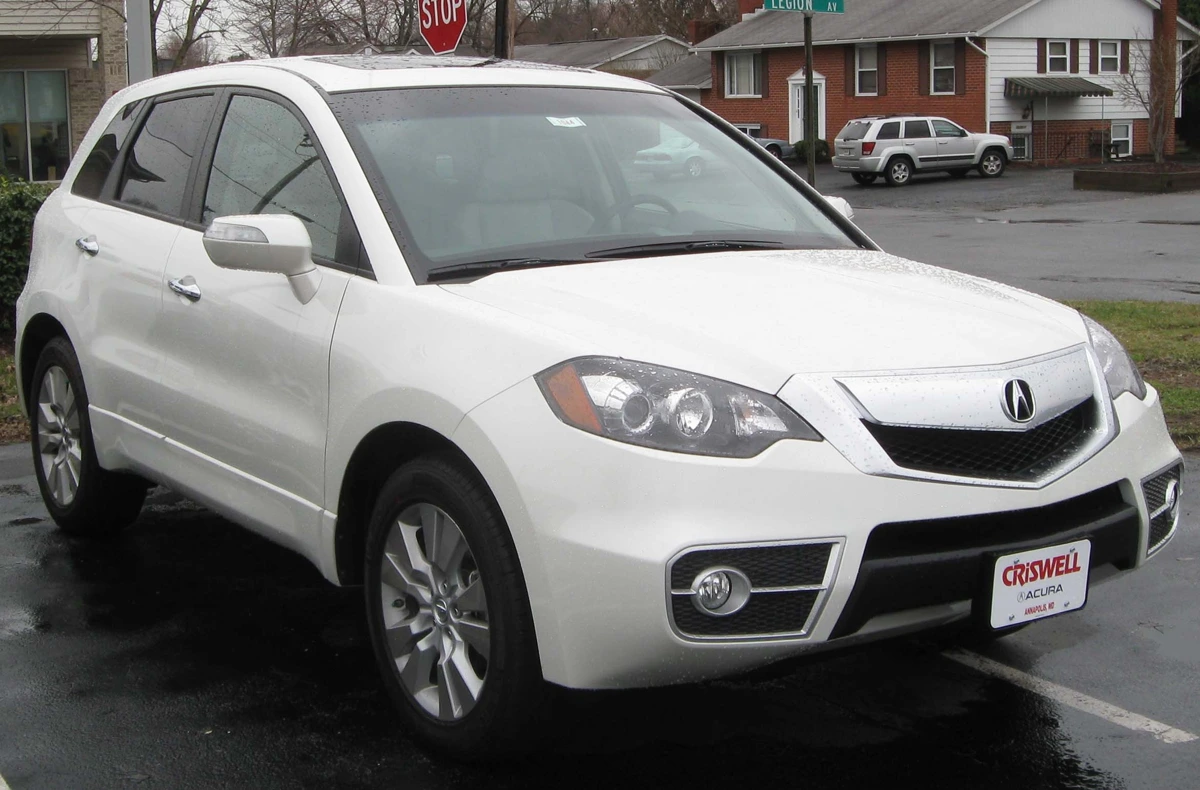
2010 Acura RDX photographed by IFCAR (Public domain). Source image re-encoded as a prepared upload preview for web display.

A source preview is a re-encoded prepared upload, not untouched camera file. In an operating runbook, verifying source clarity and saving untouched camera originals locally must occur before initiating automated background processing.
Put your car on a clean background
20 free AI photo edits a day. Copy your source vehicle onto a fixed background, then check the outline and plate cover. Sign in to start; no credit card needed.
Operational Runbook Decision Matrix
The table below summarizes the objective, pass criteria, and common risk associated with each of the seven workflow stages:
| Stage | Primary Objective | Pass Criteria | Primary Failure Risk |
|---|---|---|---|
| 1. Source & Role | Match VIN and assign gallery role | Sharp focus, accurate stock match | Asset assigned to wrong inventory record |
| 2. Scene Decision | Separate exteriors from details | Interiors kept natural, exteriors segmented | Interior shot submitted to studio backdrop |
| 3. Fixed Background | Apply approved dealership preset | Consistent backdrop across vehicle set | Mismatched preset tones within gallery |
| 4. Global Correction | Review optional color and orientation changes | Selected flags match output; compare with source | Unnatural color cast from aggressive gain |
| 5. Outline & Condition | Verify cut line and retain damage | Clean antenna/mirrors, scratches intact | Clipped mirror stalk or erased body scratch |
| 6. Plate Review | Cover required plate regions | Cover placement checked across the frame; no anonymity guarantee | Unmasked personal registration details |
| 7. Saved Files | Export approved deliverables | Agreed dimensions/format; untouched capture archived | Corrupted file export or dropped frame |
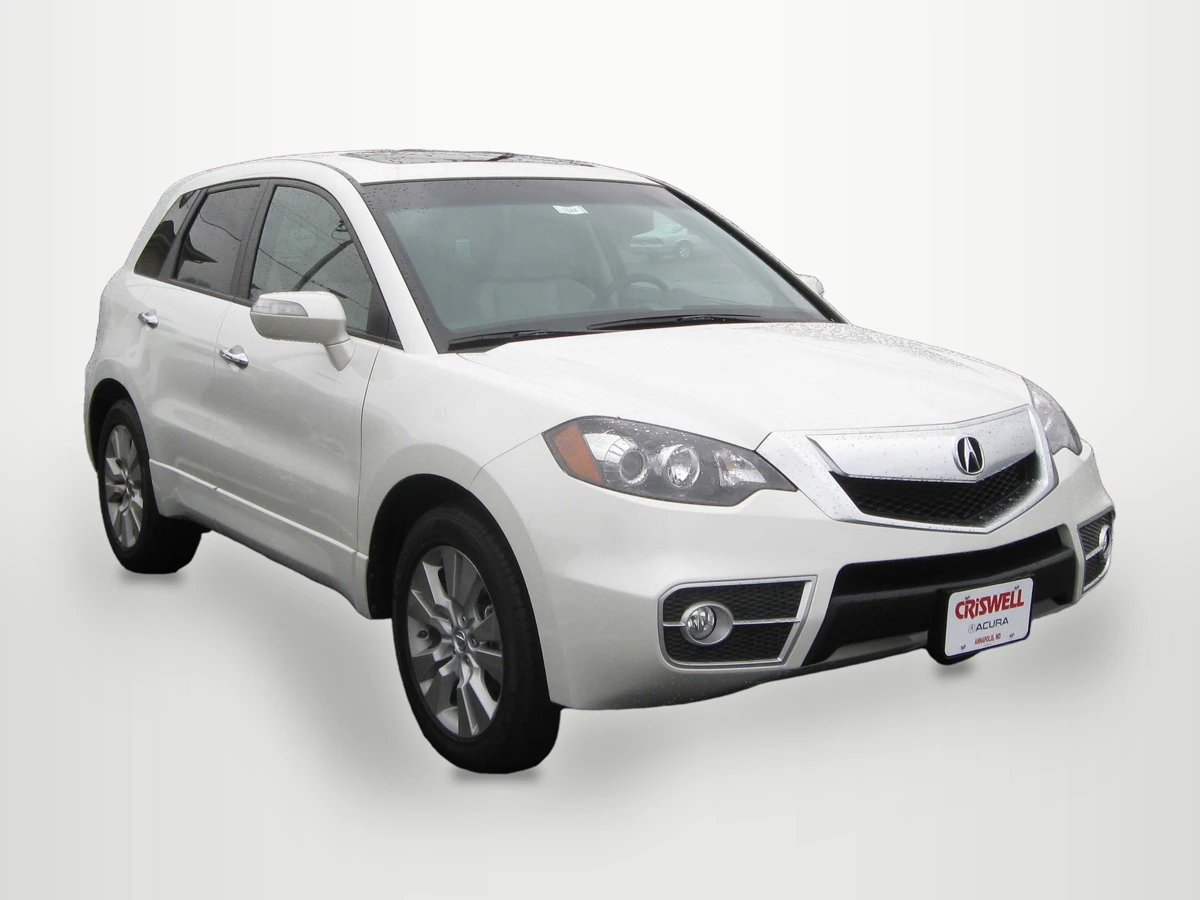
2010 Acura RDX photographed by IFCAR (Public domain). Output image generated with HeyDreaming White sweep preset; background replaced, scaled to 1920x1440, and re-encoded to WebP preview for web display.
WebP previews are compressed versions of actual downloads. This preview illustrates the White sweep preset output at 1920x1440 dimensions, showing why staff must inspect rooflines, contact shadows, and window reflections before finalizing file delivery.
Using the Workflow Runbook Worksheet
To maintain procedural discipline across your team, download our standardized manual workflow worksheet:
Download the car photo editing workflow worksheet (CSV)
The manual CSV provides seven structured rows corresponding to the runbook stages: source and photo role, scene decision, fixed background, optional global correction, outline and condition inspection, plate review, and actual saved files. Staff record stock_number, source_filename, observed_result, decision (Pass, Redo, or Hold), reviewer, next_action, and notes.
This worksheet is a manual administrative checklist. It does not connect to dealer management systems, pull camera timestamps, or enforce software policies. Staff step through each stage, log observations, and sign off before files are ingested into online feeds.
System Boundaries and Practical Constraints
When operating within HeyDreaming, teams should align their procedures with documented tool capabilities:
- Four fixed background presets: HeyDreaming provides White sweep, Light grey, Dark grey, and Showroom soft. The platform does not support custom background uploads, generative lighting synthesis, or dent repair.
- Quota allowances: The Vehicles mode supports up to 50 photos per car. Free accounts include 20 daily edits, while Pro ($29/month) and Max ($99/month) provide 100 daily edits. Starting a new single-photo correction job uses daily allowance. The separate Vehicles retry mechanism permits at most two redos per frame.
- Upload scaling: Browser upload preparation automatically caps the longest image dimension at 3000 pixels and re-encodes files to JPEG. Untouched camera originals must always be archived locally.
- Glass views remain visible: Background replacement isolates the exterior vehicle body, but reflections and lot views captured through window glass are preserved.
Vehicle editors offer their own plate-cover choices. Use the standalone tool separately when you need Your logo or manual plate boxes, then review the saved file again; it is not an in-place Logo control for a vehicle set. Global correction is also optional and off by default, not a compulsory stage for every photo.
Frequently Asked Questions
Why should interior vehicle photos skip background replacement?
Interior photos—such as the steering wheel, seating rows, and console—rely on surrounding cabin context. Submitting an interior shot to background replacement algorithms often results in unnatural cutouts through window frames and distorted pillar edges.
What should staff do if an automated mask clips a side mirror stalk?
A different backdrop can reveal or hide edge contrast, but does not repair missing vehicle pixels. Compare the source, keep the original where suitable, arrange an agreed external correction, or recapture an inadequate source. There is no manual mask brush in this flow.
Does 1920x1440 work on all third-party advertising portals?
A resolution of 1920x1440 (4:3 aspect ratio) is a standard option in HeyDreaming offered for selected exports. However, marketplace requirements vary, so dealerships should confirm compatibility with their specific feed syndicator.
Immediate Next Step
Select one vehicle in your staging queue. Step through the seven runbook stages using a single test photo in the AI car photo editor to verify your scene decisions, backdrop selection, and file export settings before processing full batches.
Put your car on a clean background
20 free AI photo edits a day. Copy your source vehicle onto a fixed background, then check the outline and plate cover. Sign in to start; no credit card needed.
Keep exploring